
Get to know CAASI
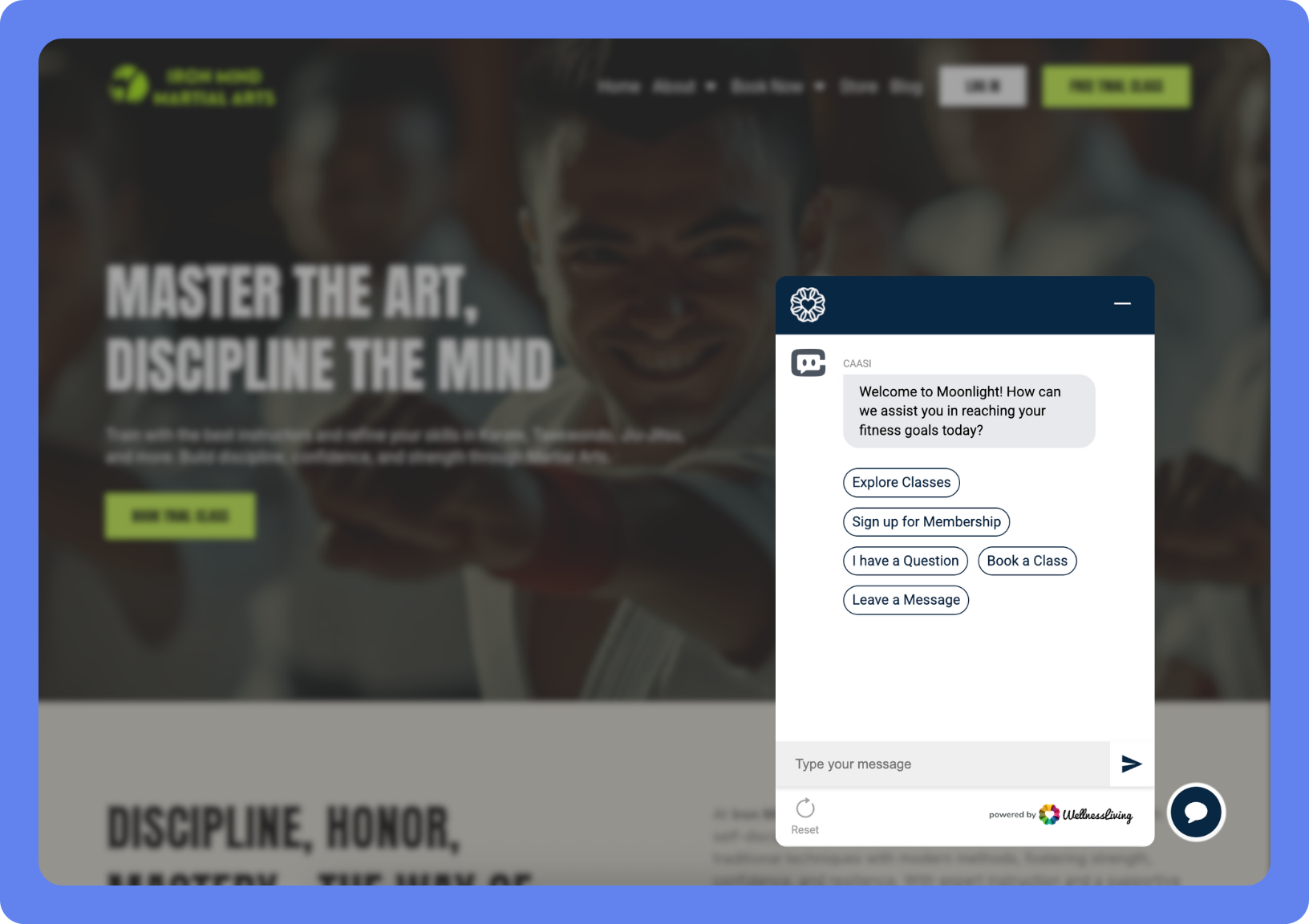
CAASI is your always-available AI assistant that helps clients get quick answers and complete common tasks without waiting for staff. Clients can ask questions, explore services, and take action, such as booking or canceling, using the information available in your WellnessLiving account and the knowledge you provide.
Because CAASI handles routine conversations and requests, your staff can focus on higher-value interactions and delivering exceptional client experiences.
(For a client-facing guide, see Chat with CAASI, the AI Agent.)
CAASI uses a combination of built-in intelligence and your business data to respond accurately and consistently. This includes:
Your WellnessLiving services, schedules, and settings
Custom knowledge you provide through website URLs
Patterns learned from real-world client interactions
This guide walks you through how to access CAASI, add it to your website, customize how it looks and behaves, manage its knowledge sources, and review client conversations and performance.
Where clients can use CAASI
Your clients can access CAASI in different places depending on your subscriptions and setup:
With all CAASI subscriptions:
Clients can chat with CAASI from any website after you embed the CAASI widget.
CAASI appears on your Client Portal.
With all Achieve Client App subscriptions:
CAASI appears on your Achieve Client App.
With a Presence subscription:
CAASI automatically appears on your website. No setup is required.
This flexibility ensures clients can access CAASI wherever they engage with your business online.
Get started with CAASI
CAASI is already included with your WellnessLiving platform—no new tools or software. Just open the CAASI console to begin.
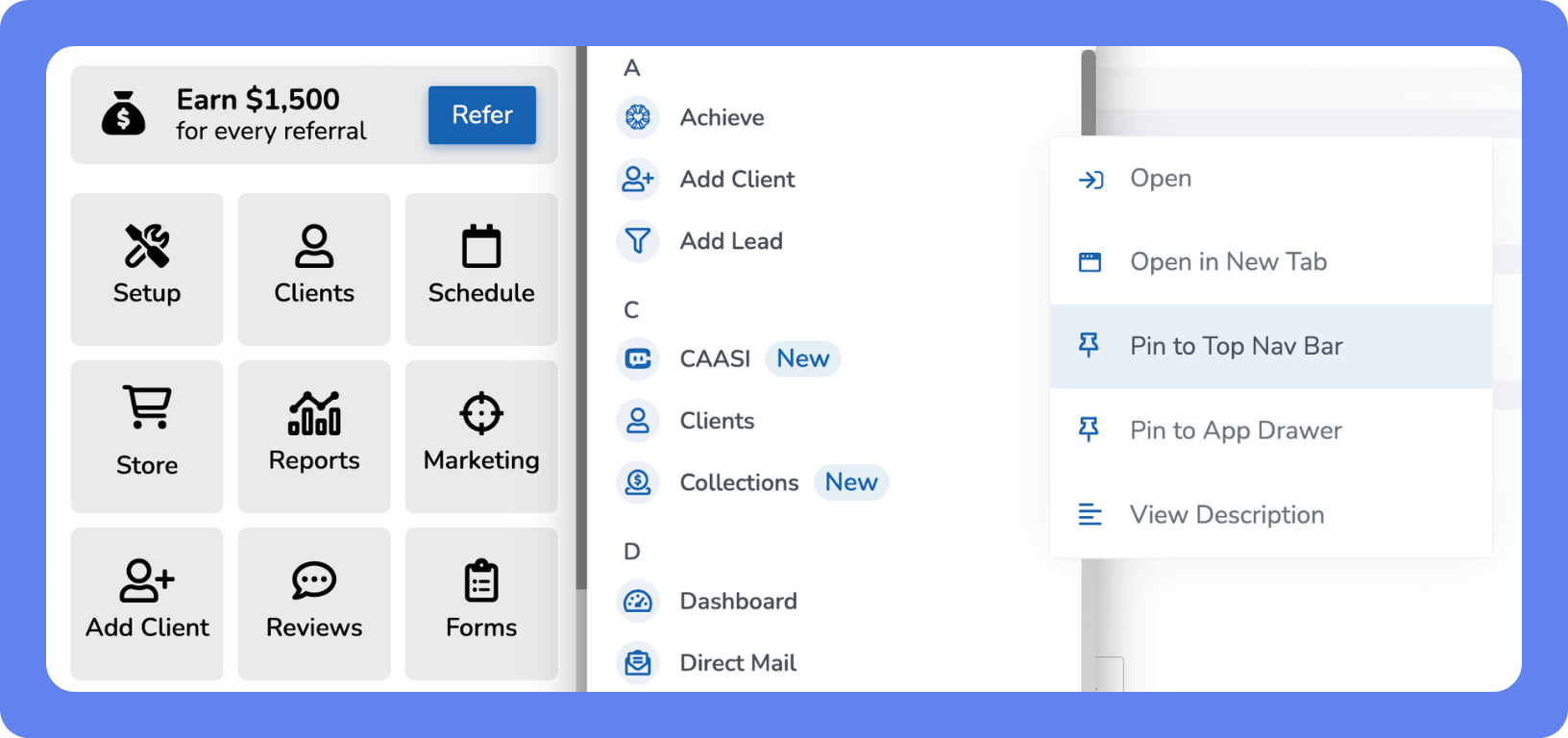
To access CAASI:
Open the App Drawer
 then click > View All > CAASI.
Optional: Click Actions > Pin to Top Nav Bar or Pin to App Drawer.
Click Open CAASI Communication Hub.
Subscribe to or unsubscribe from CAASI
CAASI is available as an add-on to your WellnessLiving subscription and can be activated or deactivated at any time.
Add CAASI to your website
If you don’t use Presence, you can manually embed CAASI on your website.
CAASI appears as a floating chat bubble on every page.
Phone Agent: CAASI voice functionality
With the Phone Agent subscription, CAASI can handle your incoming calls the same way it handles web and app conversations. Clients can call your business and speak with CAASI directly, without waiting for staff.
With the Phone Agent plan, CAASI can also:
Answer calls and handle routine requests over the phone.
Book services, check availability, and manage appointments via voice calls.
Capture new leads and answer questions using your training data via voice calls.
Transfer calls to a staff member when a client requests it.
Flag calls where the client goes silent, so your team can follow up.
Your existing CAASI setup carries over automatically. Training data, conversation history, and customization settings all apply to phone conversations without any additional configuration.
To set up your phone number, configure voice settings, and enable live call transfer, see Set up your CAASI phone agent.
Book services with CAASI
CAASI can complete bookings on behalf of your clients without staff involvement, and can offer clients a spot on the wait list when an appointment is fully booked. Depending on your cancellation settings, CAASI can also cancel bookings directly, or hand cancellation requests to your front desk instead. Clients can request these actions through any channel where CAASI is available, at any time of day.
For a full list of what's included in each subscription tier, see Manage your add-ons and subscriptions. To share information about CAASI with your clients, see Chat with CAASI, the AI front desk.
When CAASI can complete a booking
CAASI can only complete a booking on a client's behalf when all of the following conditions are met:
The client has an active membership, session pass, or other Purchase Option that covers the service.
The service doesn't require payment at the time of booking.
The service doesn't require the client to sign a waiver before booking.
The service doesn't require the client to provide details other than name, date of birth, email and phone number.
If any condition isn't met, CAASI won't complete the booking. Instead, it sends the client a booking link so they can finish the request themselves in the Client Portal, or directs them to staff.
You can see which requests are limited in the Overview report under Intents and Drop off points in your Communication Hub.
Customize CAASI’s appearance
CAASI’s customization settings let you shape how the AI assistant looks, communicates, and responds to clients, so it feels like a natural extension of your business. You can personalize CAASI’s name, welcome messages, logos, colors, fonts, and chat behavior to match your brand and create a consistent experience across client touchpoints.
Customization options are available for the Achieve Client App, Client Portal, and your website, with each channel designed to support different client needs. Web chat is optimized for engaging new visitors, capturing contact information, and guiding prospects toward bookings or sales from your website or Client Portal. The Achieve Client App supports new and existing clients and can be tailored to prioritize account access, appointments, payments, and more personalized interactions.
Why it matters
Customizing CAASI ensures clients experience a consistent, on-brand interaction across every channel. When CAASI looks and communicates like your business, clients are more comfortable engaging, asking questions, and taking action.
By tailoring CAASI’s appearance and behavior, you can:
Increase engagement and conversions by aligning conversations with your brand and client expectations.
Reduce confusion and friction through clear messaging, welcome prompts, and quick replies.
Maintain a consistent experience across channels while adapting interactions to each channel’s purpose.
These customizations help CAASI work more effectively as a digital team member, supporting client needs while reinforcing your brand at every touchpoint.
Get started
To get started with these customizations, see Customize CAASI's appearance.
Set up CAASI Preferences
Use these settings to control CAASI's persona, what it can share, how it hands off to staff, and its behavioral guardrails.
Agent Persona — Set the agent name and tone clients hear or read.
Conversation Rules — Control what CAASI can share and which services it promotes.
Cancellations — Control how CAASI handles cancellation requests.
Staff Handover — Control live call transfer and when CAASI hands a conversation to staff.
Guidelines & Guardrails — Set specific Do's and Don'ts CAASI should always or never follow.
Get started
To get started with these customizations, see Set up CAASI Preferences.
Add knowledge sources to CAASI
CAASI answers client questions using the information available in your WellnessLiving account and the knowledge sources you provide, such as URLs, uploaded files, and FAQs. By adding training data, you can improve the accuracy, relevance, and consistency of CAASI's responses, ensuring clients receive up-to-date information about your business.
Knowledge sources allow you to teach CAASI about details that may not exist in your standard settings, such as policies, promotions, seasonal offers, or internal processes. You can add frequently asked questions, link CAASI to specific pages on your website, or upload documents like flyers, guides, and reference materials. This helps CAASI respond confidently and reduces the need for staff follow-up.
Why it matters
Adding knowledge sources helps CAASI give accurate, consistent answers without staff involvement. By keeping these sources current, you can:
Make sure clients get up-to-date information about services, promotions, and seasonal offerings.
Control which sources CAASI references during conversations.
Improve response quality by aligning CAASI's answers with your website and internal materials.
Reduce repetitive questions by clearly documenting policies, pricing, and procedures.
Get started
To get started with these customizations, see Add knowledge sources to CAASI.
Review client conversations
The Communication Hub gives you a complete view of how clients interact with CAASI across all channels. From this page, you can monitor active and completed conversations, review outcomes, and see how CAASI is handling bookings, lead capture, and client questions.
Regularly reviewing conversations helps you spot trends and find ways to improve the client experience. For example, if clients keep asking about your cancellation policy, that's a signal to make that information easier to find on your website or in your welcome messages.
Use the Conversation Log to search and filter all CAASI interactions, review transcripts, track outcomes, and follow up where needed.
Why it matters
By monitoring conversations, you can:
Spot common questions or friction points that point to missing or unclear information.
Make sure clients who need staff help get a timely follow-up.
See how often CAASI resolves requests without staff involvement.
Track booking, cancellation, and lead trends.
Review transcripts and resolution statuses to maintain quality.
Access the Communication Hub
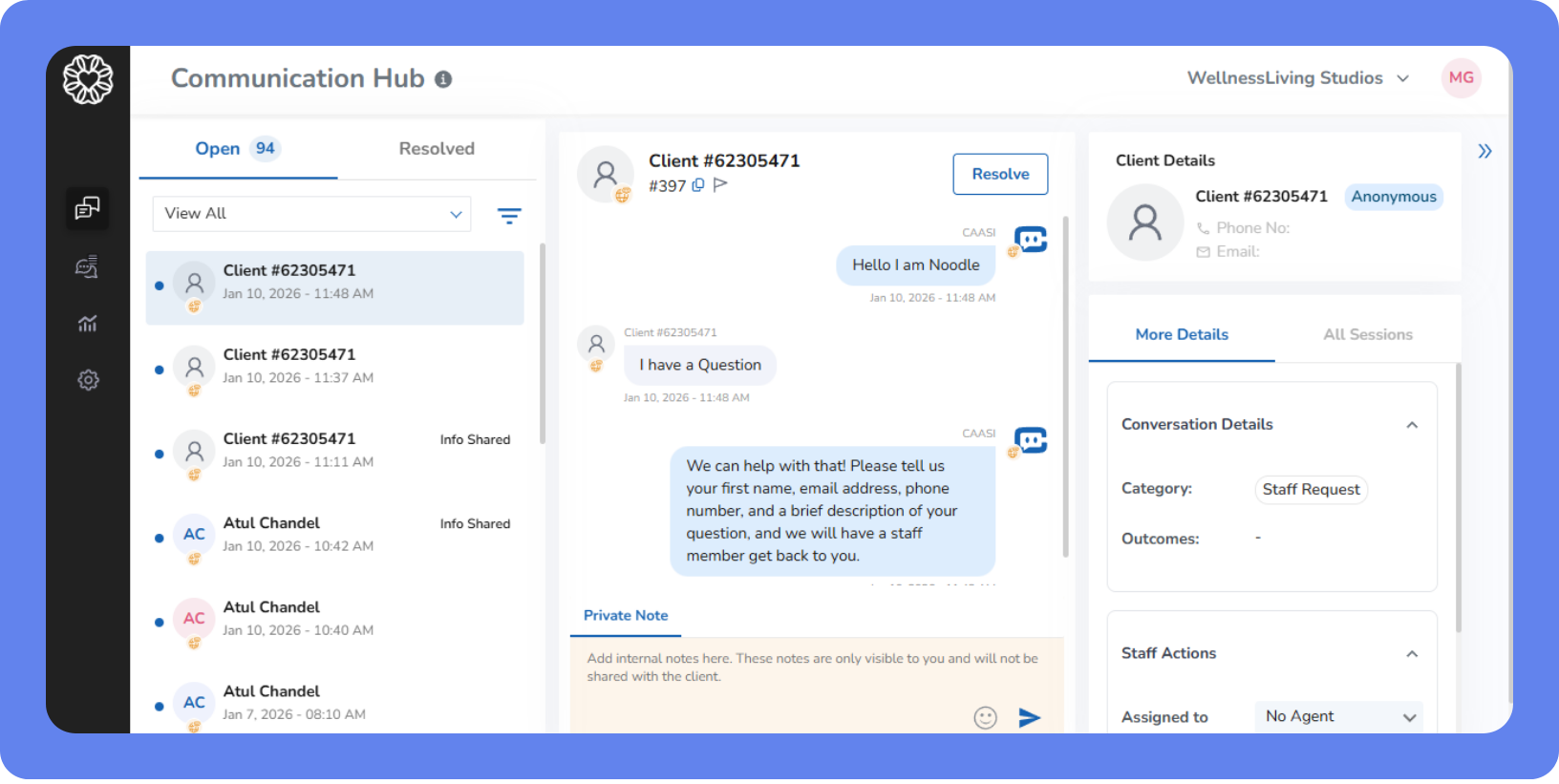
To review your clients' conversations with CAASI from the Communication Hub:
Open the App Drawer then click View All > CAASI.
Click Open CAASI Communication Hub.
On the side menu, click Communication Hub

Your client conversations are displayed.
On the left side of the page, click through the conversations.
Click Filter to filter the list by the available parameters.
Click Open to view conversations with required staff action.

Required actions appear next to the client’s name.
Unread conversations are marked with a blue circle.
Flagged conversations are marked with a red flag.
Click Resolved to view completed conversations.
In the center of the page, the conversation history appears.
Read through the conversation, and add any notes about it to the Private Note section.
Click Call to call the client directly.
Note: This option is only available to businesses with the Phone Agent subscription.
Click Resolve at the top of the section to resolve an open conversation.
Click Flag
 under the client’s name to flag a conversation.
On the right of the page, details about the client appear. Additionally, you can see whether the conversation resolved the client’s questions. Click All Sessions to view the client’s other conversations with CAASI.
Access your Conversation Logs
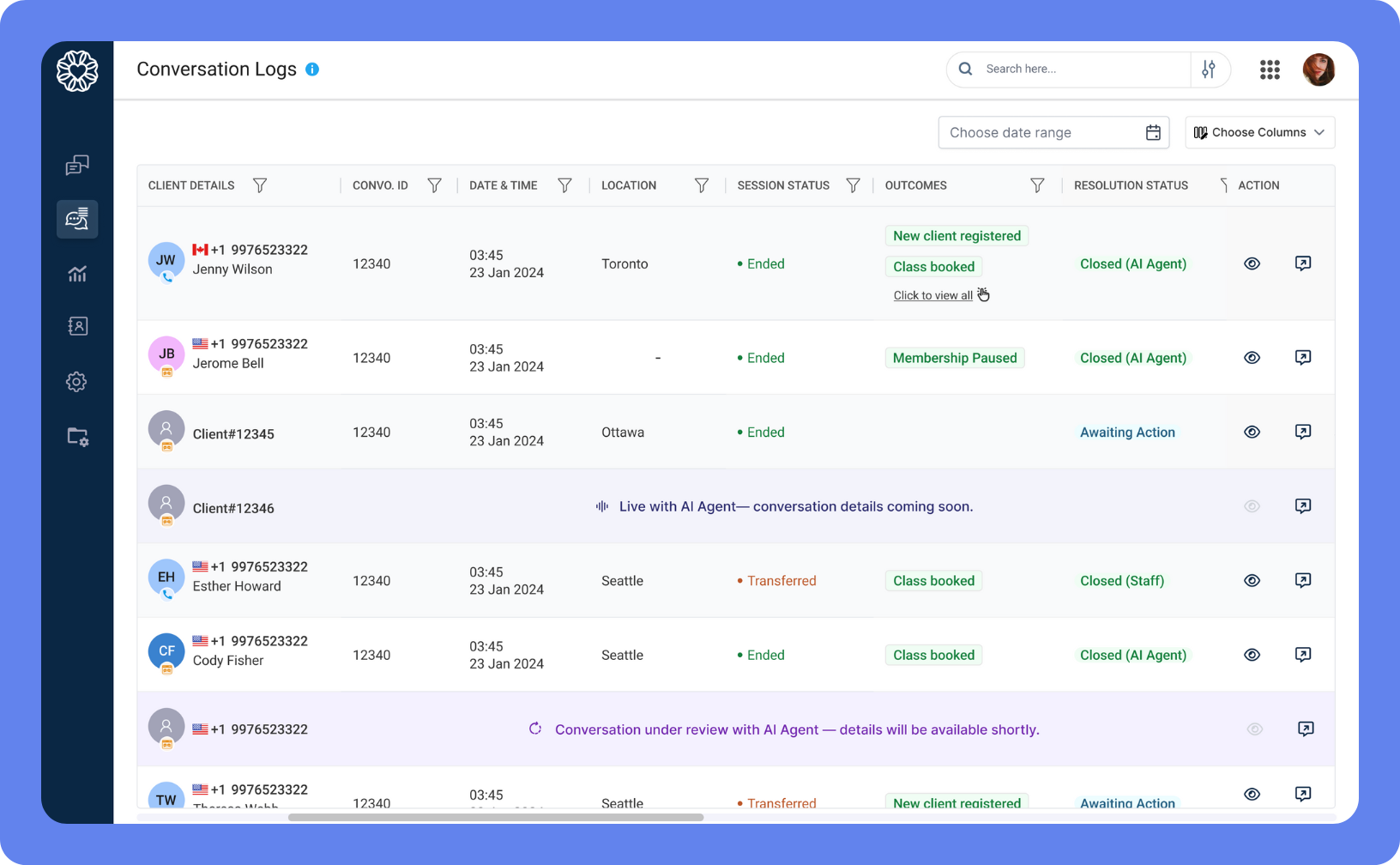
To review your clients' conversations with CAASI from the Conversation Log:
Open the App Drawer
then click View All > CAASI.
Click Open CAASI Communication Hub.
On the side menu, click Conversations
 > Conversation Log.
A list of all conversations appears.
At the top of the page, click Search here… to search for specific conversations.
Click Filter
 to filter the list by the available parameters.
Click the Date Range to filter the list by date.
Click Column Selector and select the columns that should appear.
Next to the conversations, click View Conversation
 or Open in new page
  to view details about the client and the conversation, as well as the transcript.
Access your Conversation Logs
To review your clients' conversations with CAASI from the Conversation Log:
Open the App Drawer
then click View All > CAASI.
Click Open CAASI Communication Hub.
On the side menu, click Conversations
> Missed Calls. A list of missed calls is displayed.
Under the Action column, click Call next to the client, then click Call to return the call. These calls will be recorded.
Columns in the Conversation Log
Column | Description |
|---|---|
Client Details | The client's name and contact information. Channel icons show how the interaction was initiated. |
Date & Time | The time and date the conversation began. |
Outcomes | The results of the conversation. Multiple outcomes may appear for some conversations. Possible outcomes are:
|
Resolution Status | The status after the conversation is completed. Possible resolution statuses are:
|
Client Type | The client type of the client. |
Channel | The communication method used, such as Web Chat or Achieve. |
Convo ID | A unique identifier used for tracking and referencing the conversation. |
Session Status | Indicates whether the session is ongoing or completed. Possible statuses are:
|
Client’s Intent | The reason the client initiated the interaction. Possible intents are:
|
Duration | The total amount of time spent in the conversation. |
Action | Contain two buttons to view more information about the conversation. Your options are:
|
Filters in the Conversation Log
Filter | Description |
|---|---|
Outcomes | Display conversations based on the result. Your options are:
|
Resolution Status | Display conversations based on the status after the conversation is completed. Your options are:
|
Client’s Intent | Display conversations based on the reason the client began the conversation. Your options are:
|
Channel | Display conversations based on the method the client used to contact CAASI. Your options are:
|
Ended By | Display conversations based on who determined the discussion was resolved. Your options are:
|
Staff notifications for CAASI
Depending on your settings, CAASI can notify your staff when:
A client needs assistance
A client tries to book a service
A new lead is captured
A Phone Agent call concludes
Notifications may be sent via:
SMS
Email
Push notifications through the Elevate Staff App
After reviewing the request, update the Resolution Status to Closed.
See how CAASI is performing
Use CAASI analytics to understand how clients interact with CAASI and how those interactions impact bookings, leads, and staff workload. Your analytics reports provide clear insights into conversations, bookings, cancellations, and captured leads, helping you measure performance, identify trends, and find opportunities to improve client engagement.
All analytics are filtered by date, so you can compare performance across different time periods, track changes over time, and export reports for deeper analysis or sharing with your team.
Why it matters
CAASI analytics help you understand how clients are engaging and where you can improve. By reviewing these reports, you can:
See which channels clients use most to contact CAASI.
Understand how often CAASI converts conversations into bookings and leads.
Spot patterns in bookings and cancellations that may need staff attention.
Track time your staff saves through automated conversations.
Find gaps in CAASI's setup and address them.
Get started
To see how CAASI is performing:
Open the App Drawer
then click View All > CAASI.
Click Open CAASI Communication Hub, then click Analytics

View your analytics by selecting one of the following:
Click Overview to see a high-level summary of your analytics.
Click Booking to see detailed insights on bookings made through CAASI.
Click Cancellations to see detailed insights on cancellations made through CAASI.
Click Captured Leads to see a list of leads captured through CAASI.
Click Exported Reports to see a list of your exported CAASI reports.
Your selected metrics appear filtered by date.
Use the preset date selections or Choose a date range to view specific dates and compare performance across different periods and track trends over time.
Click Export to generate the current version of the report. The report is sent to your Exported Reports page where you can view details and download the report.
Optimize CAASI's performance
If your numbers are lower than expected, there are a few simple ways to improve CAASI’s performance:
Check that your widget is live and visible on your website’s most active pages, such as your home page or class schedule.
Check that your services, Purchase Options, and staff biographies are complete. CAASI pulls information directly from here and the more information CAASI has, the better it can serve your clients.
Make use of additional knowledge sources by uploading them to CAASI. Note that this feature is only available to subscribers at the Agent Plan level.
Update your Welcome Message to make it more inviting and prompt clients to ask questions. For example, try: Hi there! I’m here to help with class times, bookings, and more—just ask!
Promote CAASI in your client communications, such as emails or newsletters, so clients know they can get quick answers anytime.
Contact our Support Team for personalized tips and guidance.
Manage client request notifications
CAASI can notify your staff whenever a client needs extra help. Depending on your settings, you’ll receive alerts when a client needs staff assistance or tries to book a service, or when a new lead is captured. If a client tries to book a personal training session after hours, staff can see the request first thing in the morning and secure the booking without missing the lead. In this section, we’ll show you how to customize these notifications and choose which staff members should receive them.
To manage client request notifications:
First, choose who receives these notifications by adjusting your staff role permissions:
Open the App Drawer
then click View All > Setup > Staff > Staff Roles.
Click the staff role you want to edit.
Scroll to the Notifications section.
Under CAASI, choose which notifications the staff member should receive. Your choices are:
Receive Staff Assistance Request notification
Receive Booking Request notification
Receive Lead Capture notification
Click Save. Repeat these steps to ensure each staff role has the desired permissions.
Next, customize your notifications to include all your desired information:
Open the App Drawer
then click View All > Setup > Notifications > Staff Notifications.
Scroll to CAASI. If the section doesn’t appear, clear any applied filters.
Next to the template type you want to edit, click Edit

Make your desired changes to the template. For further guidance, refer to Modify an email template using the visual editor, Email variables, and SMS variables.
Click Save. Repeat these steps for the Email, SMS, and Push options for each notification as desired.