
This article outlines how to add FAQs, URLs, and documents CAASI can reference and learn from. For more information, see the Complete Guide to CAASI, Your AI Front Desk.
Add knowledge sources to CAASI
Use these settings to give CAASI additional information to reference during client conversations. You can add frequently asked questions, link CAASI to pages on your website, or upload documents like policies, guides, and promotional materials.
To open your knowledge sources:
Open the App Drawer
 then click View All > CAASI.
Click Open CAASI Communication Hub.
On the side menu, click Application Settings
 > Training Data.
Add FAQs
Use the FAQs tab to add short snippets of information CAASI can use to answer common questions. Entries don't need to follow a question-and-answer format; point-form notes work well.
To add FAQs:
Click the FAQs tab.
Add your information in the text box, using line breaks to separate entries.
Use Search to find and update previously added FAQs.
Click Save.
Add URLs and domains
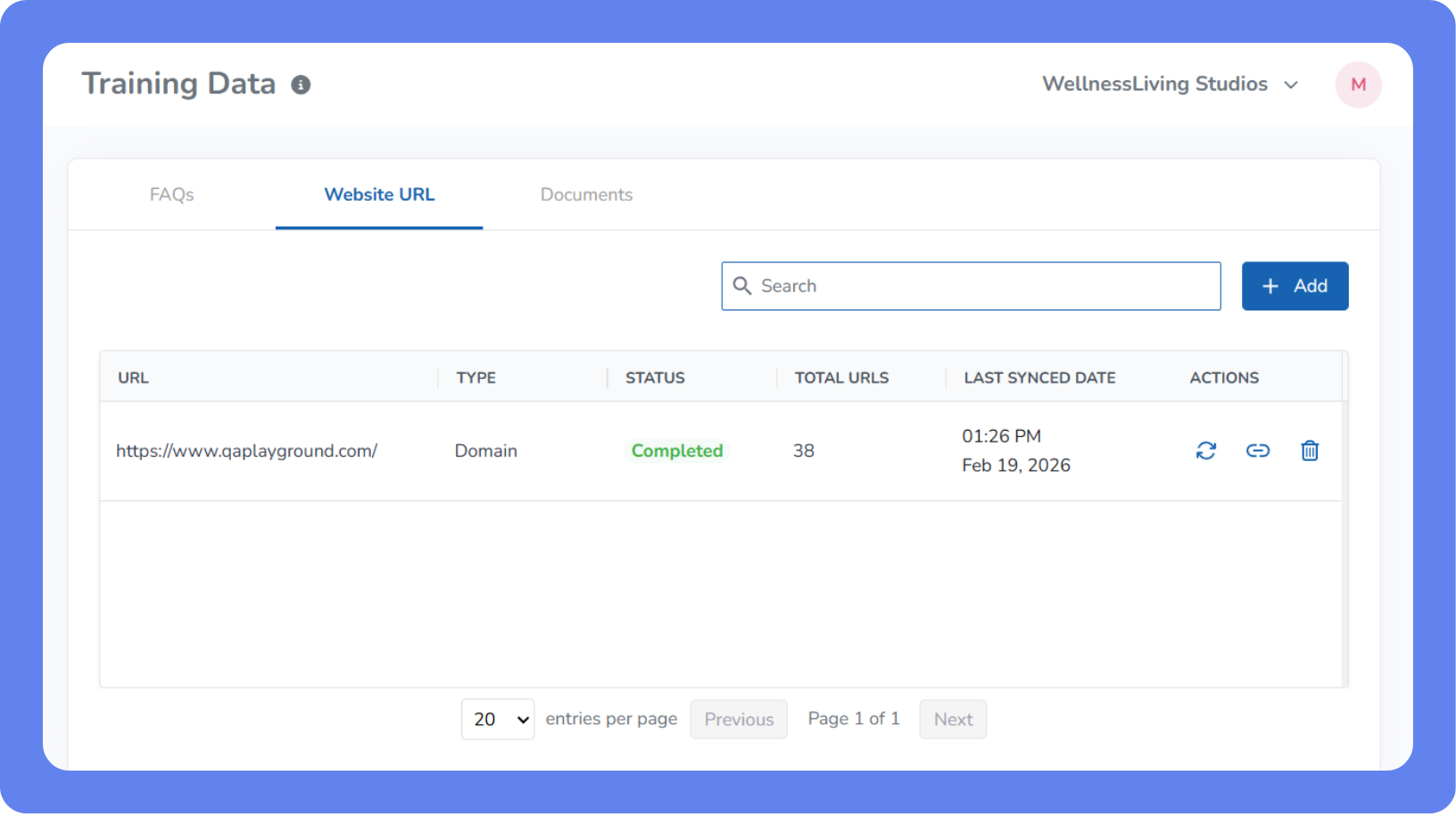
Use the Website URL tab to add web pages or entire domains for CAASI to reference. CAASI will crawl the pages you add and use the content to answer client questions.
To add URLs and domains:
Click the Website URL tab.
To add a URL or domain, click Add, select the type, enter the details, and click Save.
To refresh a page so CAASI picks up recent changes, click Recrawl recrawl.png. The status will update as CAASI reviews the page.
To exclude specific pages within a domain from CAASI's reference, click Popup Link
 . Review the list and click Delete next to any pages you want to remove.
To remove a URL or domain entirely, click Delete
 then click Yes.
Add documents
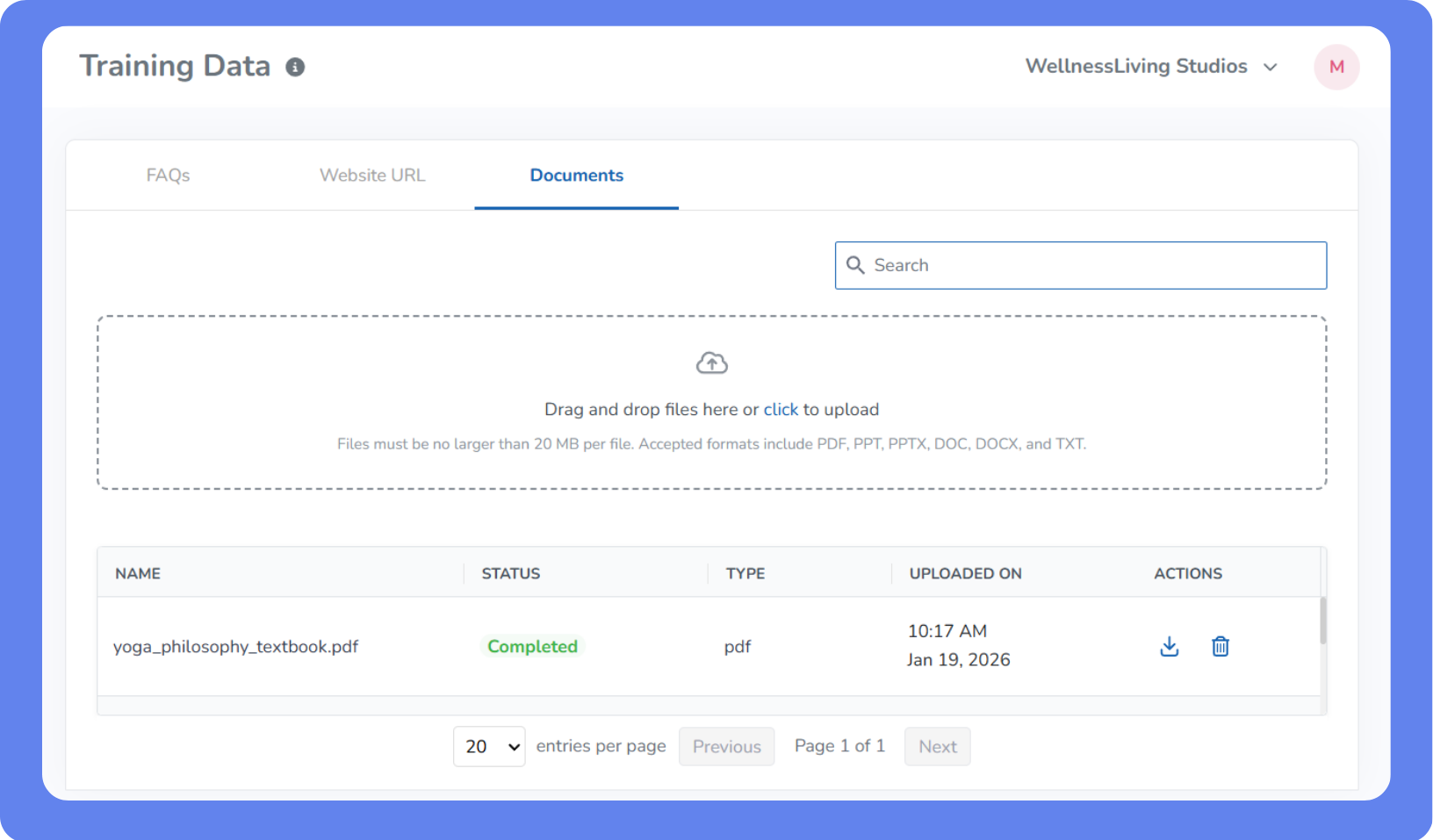
Use the Documents tab to upload files for CAASI to reference. Supported file types are .pdf, .doc, .docx, .ppt, .pptx, and .txt, with a maximum file size of 20 MB per file.
To add documents:
Click the Documents tab.
To upload a file, drag and drop it onto the page or click to browse your computer.
To download a file, click Download download caasi.png.
To remove a file, click Delete
then click Yes.