
Adding the CAASI Chat widget to your website turns every visit into an opportunity. Instead of visitors hunting for answers or leaving when questions come up, CAASI is there instantly to greet them, answer questions, and guide them toward booking or taking the next step - no matter where they are on your site or what time it is. Clients get fast, conversational support without interruption, and you capture more interest while your team stays focused on in-person work.
CAASI works like a true digital front desk that’s always available. Once installed, it appears consistently across your entire website as a simple chat launcher, so clients never have to search for help. You only need to add the CAASI code once, and it immediately supports every page, creating a seamless, always-on experience that helps convert curious visitors into confident, booked clients.
For information about embedding standard widgets into your website or Facebook page, see Embed a widget.
Key tips
Use HTTPS
Make sure your website starts withhttps://so the widget loads securely.
Test on desktop + mobile
Every website builder behaves differently. Always preview after embedding.
Confirm proper display
If something looks off, check that your domain is correctly added in WellnessLiving.
Embed CAASI Chat on your website
This walkthrough shows you how to add CAASI to your website so existing and prospective clients can get instant answers, understand which services are right for them, and book with confidence.
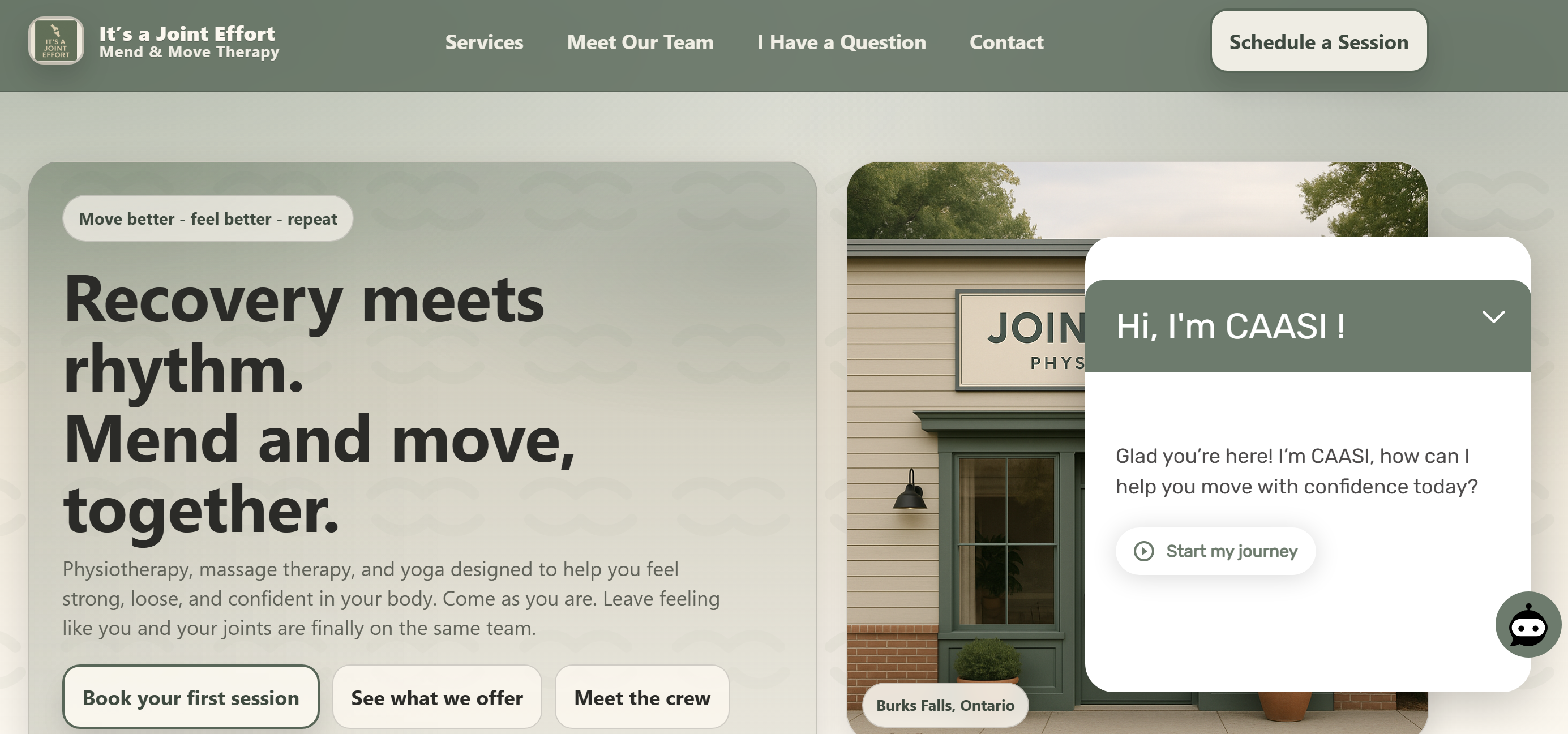
To embed CAASI on your website:
Open the App Drawer then click View All > Setup > Website Widgets > CAASI.
Make any desired changes to the Widget Setup.
On the side-menu, click Installation.
To add CAASI to Your website, set the option to ON and click Add on website. Then choose the method you want to use.
Add CAASI myself – Select the hosting option for your website, then copy the provided code and paste it into your website code following the onscreen instructions.
Send to developer – Enter your developer’s email address and the message you want to send, then click Send.
Need Help? – Choose a date and time to meet with WellnessLiving specialist to walk you through embedding the widget. Enter your details, then click Book.