
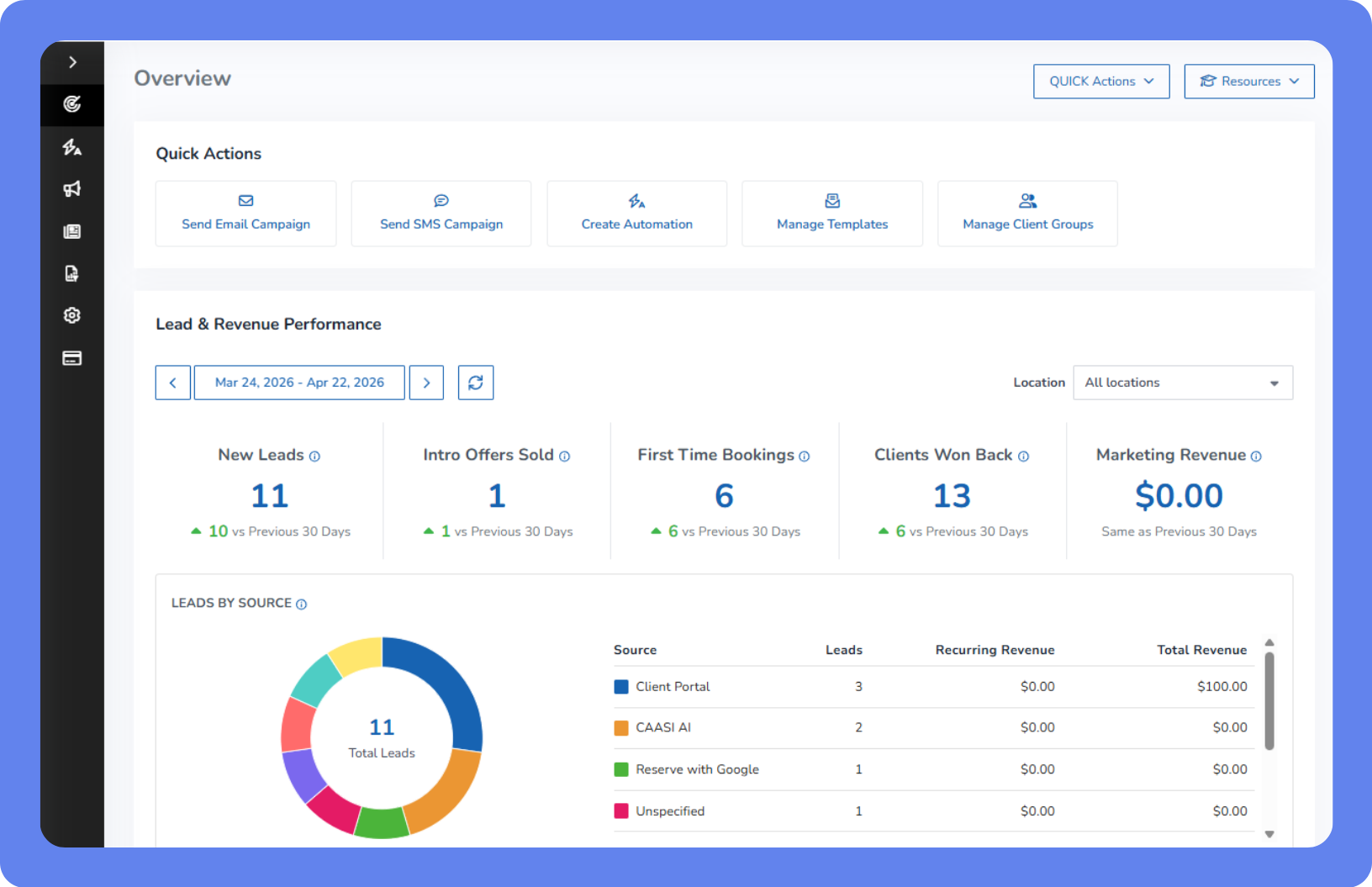
The Marketing Suite Overview page is your marketing home base. It shows you what's working, what needs attention, and where to take action next, all without navigating away from a single screen. Every time you open the Marketing Suite, you'll see a snapshot of your leads, your campaigns, and how your marketing is performing.
To access the Marketing Suite Overview page, open the App Drawer  then click View All > Marketing Suite.
Before you begin
Before accessing the Marketing Suite Overview page, you'll need an active Marketing Suite subscription. For more information, see Manage your Marketing Suite subscription.
Quick Actions
The Quick Actions menu in the top-right corner of the page provides shortcuts for common marketing tasks. Quick actions can also be accessed at the top of the page.
Click Quick Actions to access the following options:
Send Email Campaign – Opens the campaign creation flow for email.
Send SMS Campaign – Opens the campaign creation flow for SMS.
Create Automation – Opens the automation creation menu.
Manage Templates – Opens the Templates page.
Manage Client Groups – Opens the Client Groups settings page.
Recent Leads
Displays the five most recently added leads, sorted by date. Leads appear here from every source, including CAASI conversations on your website, Lead Capture Widget submissions, manual staff entry, Reserve with Google, and more. If you have CAASI running, you'll see new leads show up here in real-time as visitors engage with your chatbot. Each entry shows the lead's name, source, stage, and next booked visit.
A lead's stage shows where they are in your sales process, based on your business's configured lead stages. You can move a lead to a new stage manually, or set stages to update automatically based on client group criteria. For example, you can set a lead stage to automatically change to your original Won stage when a client purchases a membership. For more information, see Set up and manage lead stages and Lead Management Report.
Click a lead's name to open their client profile. Click View All to open the full Lead Management Report in a new tab.
Campaign Performance
Displays campaign metrics for a selected date range, defaulting to the last 30 days. Use the date selector to adjust the range.
Metric | Description |
|---|---|
Total campaigns | The total number of campaigns created in the selected period, including scheduled, sent, and failed. |
Scheduled campaigns | Campaigns set to send at a future date and time. |
Sent campaigns | Campaigns that were successfully sent to recipients. |
Failed campaigns | Campaigns that didn't send. Check these to find and fix any delivery issues. |
Open rate | The percentage of recipients who opened your email, averaged across all sent campaigns in the period. |
Click rate | The percentage of recipients who clicked a link in your email, averaged across all sent campaigns in the period. |
Click-to-open rate | Of the recipients who opened your email, the percentage who also clicked a link. A high rate means your content is landing well with readers. If this number is low, your subject line is doing its job getting people to open, but the email content itself may need a clearer call to action. |
Click View All to open the Marketing Campaigns Report filtered to the same date range.
Recent Campaigns
The Recent Campaigns section shows the five most recently sent or failed campaigns.
Click a campaign name to view its details in the Marketing Campaigns Report. Click View All to open the full report in a new tab.
Next steps
Use the links below to dive deeper into any area of the Marketing Suite.