
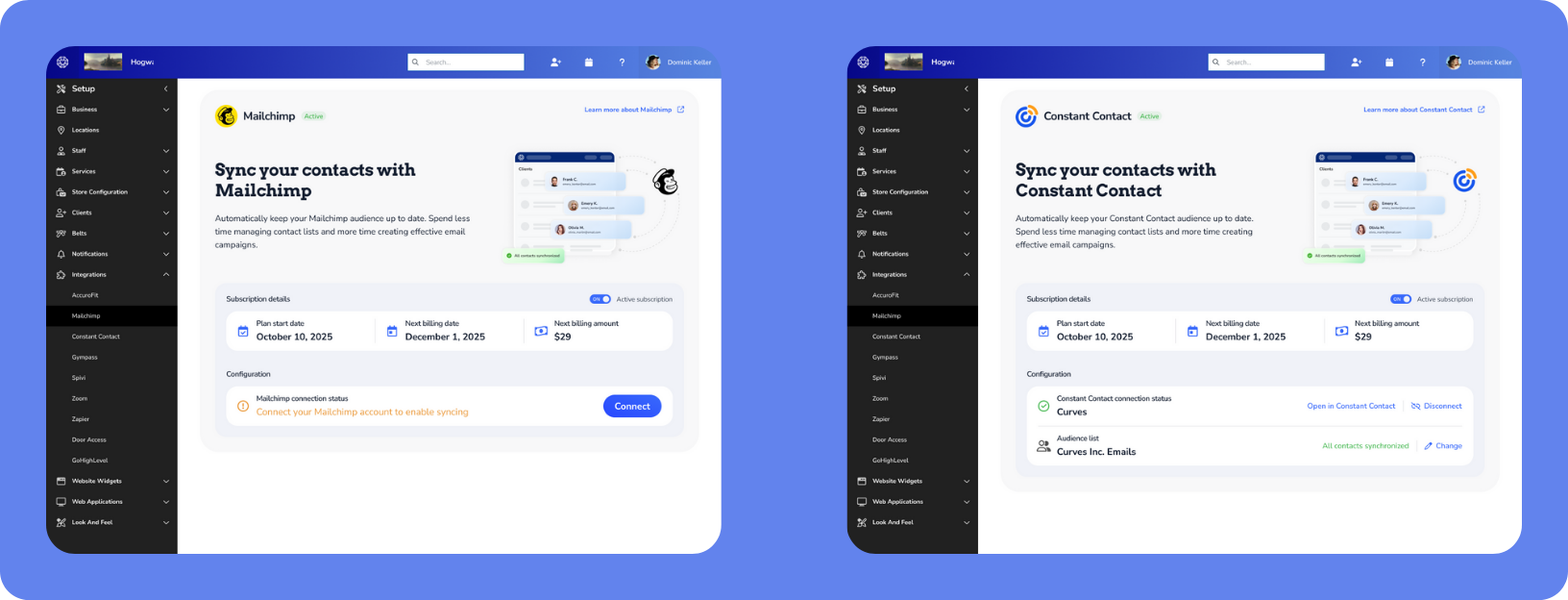
WellnessLiving integrates with Mailchimp and Constant Contact to help you manage your email marketing campaigns using your client data. Once connected, selected contact information syncs from WellnessLiving to your chosen platform automatically. The integration is available for $29 USD per month and lets you connect to either Mailchimp or Constant Contact, with the flexibility to switch between them at any time.
WellnessLiving's Marketing Suite is a built-in alternative to Mailchimp and Constant Contact that connects directly to your client data, so it can trigger emails based on bookings, attendance, purchases, and more. For more information, see Guide to the Marketing Suite.
This article explains how to connect Mailchimp or Constant Contact to WellnessLiving, what data is synced between platforms, and how unsubscribe requests are handled.
Key tips
You must have an active Mailchimp or Constant Contact account to use the related integration.
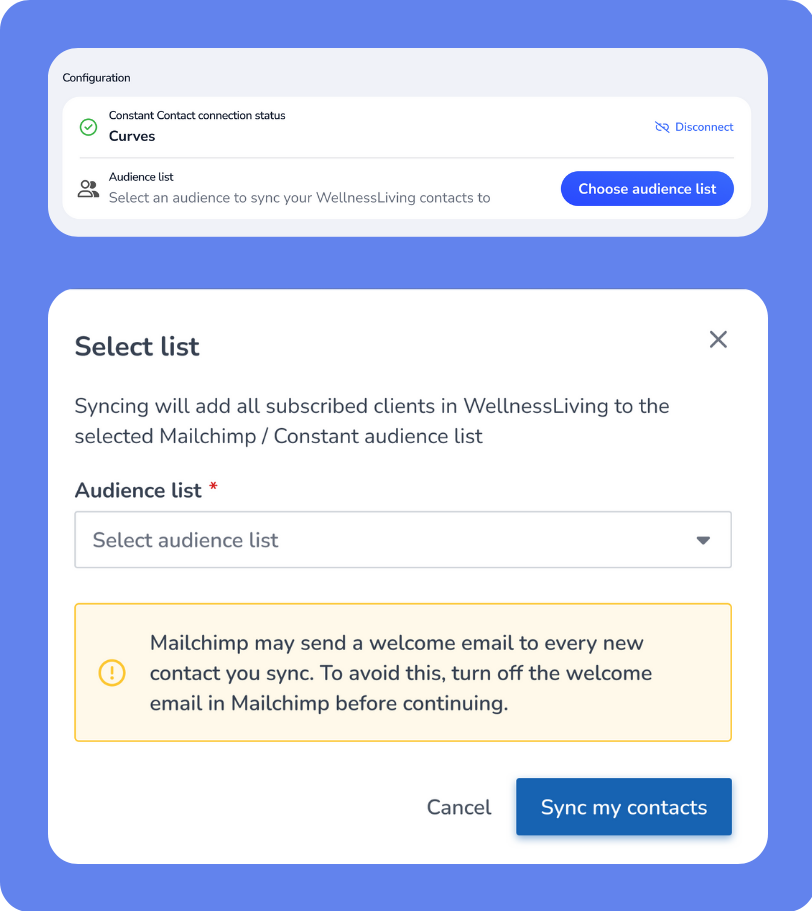
You must create an audience (Mailchimp) or list (Constant Contact) in your email marketing account before connecting it to WellnessLiving. During setup, you’ll be prompted to select the list.
If you're using Constant Contact, we recommend disabling your welcome email before connecting to avoid sending duplicate welcome emails to your clients. For more information, see Deactivate a Welcome Email on the Constant Contact website.
Enterprise users aren't charged a monthly fee for the integration.
What data is synced
When connected, the contact information synced one-way: from WellnessLiving to Mailchimp or Constant Contact. This means that changes made in Mailchimp or Constant Contact (other than unsubscribes and email preferences) don’t update WellnessLiving client profiles.
The following information is synced:
First name
Last name
Email address
Phone number (if supported by the platform)
Client status (active/inactive)
Unsubscribes and email preferences
Unsubscribes are synced 2-way between WellnessLiving and your selected email marketing platform for News & Updates emails. When a client unsubscribes in Mailchimp or Constant Contact, they’re automatically marked as Unsubscribed for News & Updates in WellnessLiving, and vice versa.
Sync timing and behavior
Changes can take up to 24 hours to apply to your contact list in MailChimp and Constant Contact.
All clients in your WellnessLiving business are automatically added to the contact list depending on whether they subscribe to your business’s news and updates.
When two client profiles with different email addresses are merged, both email addresses remain in your Mailchimp list. The unused email address can be removed manually from Mailchimp if desired.
If you’re experiencing issues with the automatic integration of your WellnessLiving clients with your Mailchimp audience, see Uploading contacts to Mailchimp to learn how to perform a manual import.
Connect or disconnect an email integration
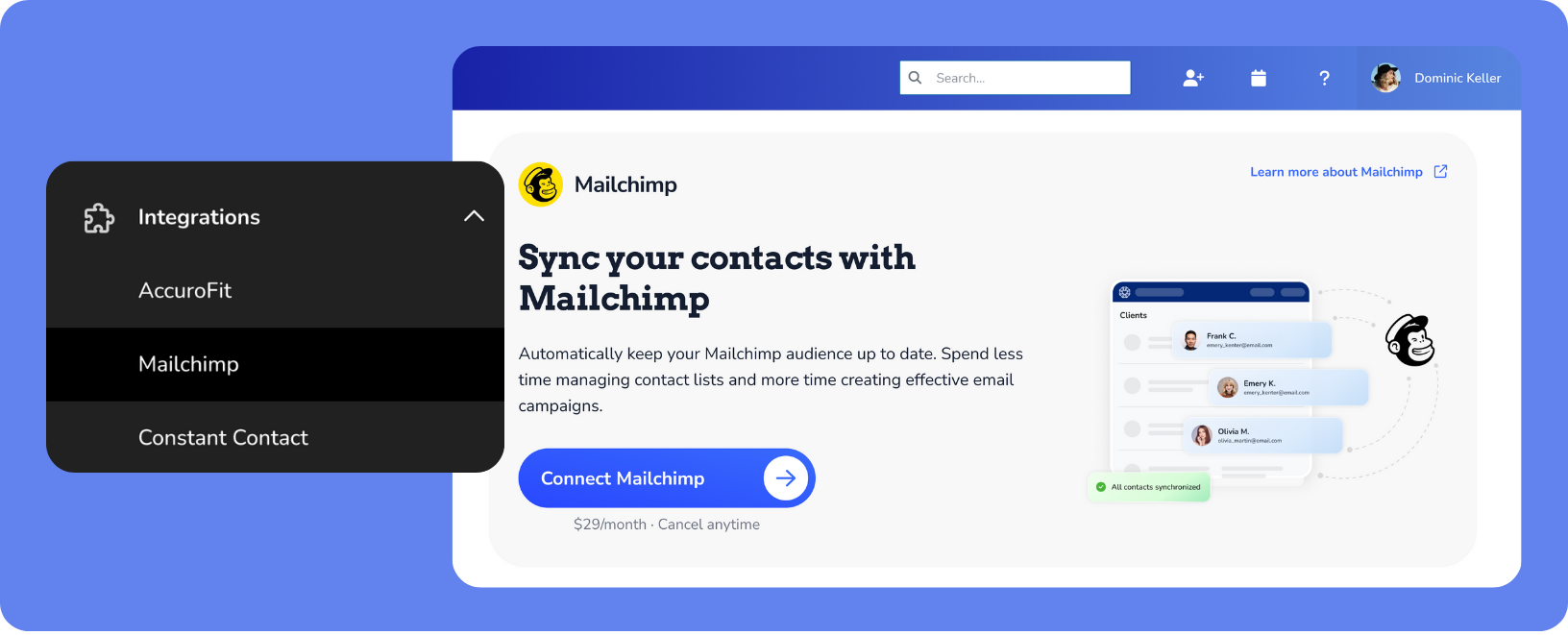
To connect or disconnect your Mailchimp or Constant Contact integration:
Open the App Drawer
 then click View All > Setup > Integrations.
Select Mailchimp or Constant Contact.
To connect the integration under Configuration:
Click Connect MailChimp or Connect Constant Contact.
Click Confirm in the popup. You’ll automatically be signed up for MailChimp or Constant Contact as an add-on and incur payments moving forward.
Sign in to the selected platform and authorize WellnessLiving. Once authorized, the connection status is updated to Connected.
Select the Mailchimp or Constant Contact list you would like to keep synced. You can only choose one list.
Click Save. Your Mailchimp or Constant Contact contact list is now connected to WellnessLiving.
To disconnect the integration, under Configuration, click Disconnect. Disconnecting stops monthly payments and future syncs, but doesn’t delete any contacts already synced to Mailchimp or Constant Contact.
Copy a Mailchimp email template into WellnessLiving
You can copy an existing Mailchimp email template into WellnessLiving to reuse branding or layouts with your WellnessLiving automated marketing email campaigns.
To copy a Mailchimp email template into WellnessLiving:
Copy the HTML source code for your email template from Mailchimp. For more information, see Access the template HTML code on the Mailchimp Help Center.
In WellnessLiving, open the App Drawer
then click View All > Marketing Suite > Templates.
Click the template you want to replace with the Mailchimp template.
In the toolbar, click Source Code

In the Source Code popup, delete all existing HTML code.
Paste the HTML code from your Mailchimp template in the Source Code box.
Click Save.
On the Edit [Template Name] page, click Save & close.