
To access the Alert Center, click the App Drawer  then click View All > My alerts.
Understanding the Alert Center
The Alert Center lets you receive alerts about system activity, such as client bookings or new Message Center messages, on both the Staff Back Office and Elevate Staff App.
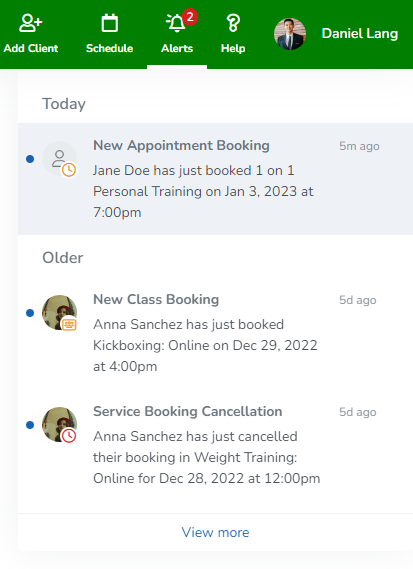
When a new alert comes in, a red indicator will appear over the Alert button with the number of unread alerts 
Click this button to expand the Alert Center and display the three most recently received alerts. Click View more to see a complete list of their unread alerts. After viewing an alert, it will be marked as read. Alerts are automatically removed from the Alert Center after seven days.
What you can do with the Alert Center
Keep your staff members informed with alerts in the Staff Back Office and Elevate Staff App.
Allow staff to customize alerts to fit their schedule and preferences. For each alert, they can choose to not receive it, receive it when it relates to their services, or receive it for all staff services.
If your business uses CAASI, staff can receive alerts for new AI-handled conversations and callback requests through My Alerts, with a direct link to each conversation for quick follow-up.
Getting started with the Alert Center
Before staff members can start receiving alerts, complete the following steps:
Set staff role permissions – Give staff members the ability to receive and manage alerts by enabling the Receive in-app alerts staff role permission.
Determine how alerts should work – Set up how alerts work for all staff members or allow each staff member with the appropriate permissions to make their own customizations.
Start receiving alerts – Your staff members can now begin receiving alerts based on the selected options.
Key tips
Staff role permissions
If a staff member doesn’t have the Receive in-app alerts staff role permission enabled, they won’t be able to access the Alert Center or make changes to their Alert Center settings.
Staff members only have permission to access alerts for the features that they have staff role permissions for.
Updated information and alerts
When an alert is sent for a client’s service booking, cancellation, or request, and the service or client is later changed, these changes won’t appear in the alert. For example, if the name of a service is changed from Yoga to Hot Yoga after the alert is sent, the alert will still list the service as Yoga.
Automated notifications
Automated staff notifications are separate from alerts. Disabling them won’t disable alert notifications.
Push notifications
Notification settings for alerts on your phone can be adjusted from iOS or Android push notifications settings.
Some alerts will take priority over push notifications. For example, an appointment booking alert will be sent over a push notification for a new appointment.
Opening alerts
Opening an alert in the Staff Back Office or the Elevate Staff App will take you to the page related to the alert, such as a new booking or service cancellation.