
You can update the appearance and settings of your client-facing applications, including the Client Portal, Achieve Client App, Self Check-In Kiosk, Attendance Kiosk, and Custom Schedule, Standard Schedule, Appointment, and Staff widgets.
For a more detailed breakdown of each setting, see Client View Settings.
Google Analytics
Integrate Google Analytics 4 (GA4) with WellnessLiving to better understand how clients interact with your online widgets and website. By connecting your Google Analytics account, you’ll gain insights into where your clients are coming from, how they engage with your site, and which marketing efforts are most effective.
When integrated correctly, Google Analytics can track the following information:
Widget pageviews
Button clicks (such as Book Now or Buy Now)
Client interactions within widgets, such as class searches or service views
Customize your Client View Settings
To customize your Client View Settings, complete the following:
Open the App Drawer
 then click View All > Setup > Web Applications > Client View Settings.
Select the Layout and Color Customizations.
Upload your business’s Logo and a featured Header Image, then determine how you want the images to appear.
Determine the client Check-In Settings for the Client Portal and Achieve Client App.
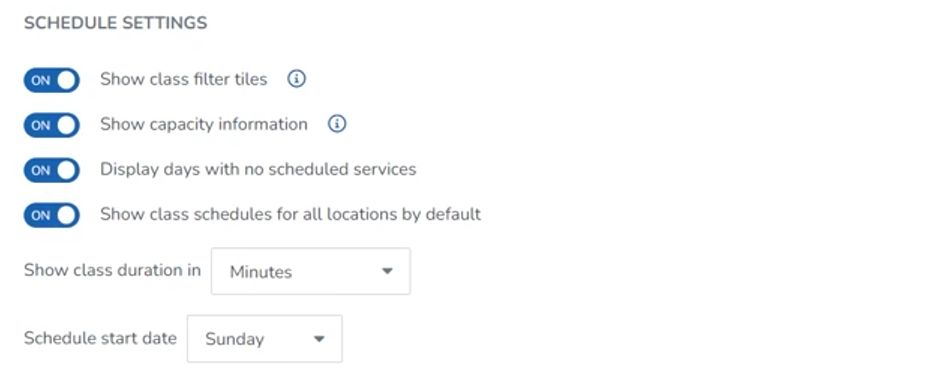
Determine how your schedule will appear on your Client Portal by adjusting the Schedule Settings.
Determine whether Facebook and X Social Sharing Options should be displayed on the Client Portal and Achieve Client App.
Determine how Staff Names will appear to clients.
Add, remove, and organize your Book Now Tabs
Under Website Domains, enter the domain of the website(s) you want to add widgets to.
You can add as many webpages as you want, if you separate each entry with a comma (for example, wellnessliving.com, google.com, apple.com).
For multiple subdomains, use a wildcard by adding an asterisk and period before your main domain (e.g., *.wellnessliving.com).
Enter your Google and Facebook Analytics information for your business.
For more information about Google analytics, see Google Help and FAQ: What information can Google Analytics track when integrated with WellnessLiving?
For more information about Facebook analytics, see Get your pixel ID from Facebook in the Facebook Help Center.
Click Save.
Get started with Google Analytics
To get started with Google Analytics:
Create a Google Analytics account and enter your information when customizing the client view settings.
Verify your Google Analytics connection.