
Client management that aligns with your business
Serving your clients well starts with having the right details in the right place from day one. WellnessLiving provides flexible tools to organize, personalize, and segment client profiles—so your client management aligns with how your business truly operates. From bookings and messages to payments and preferences, everything stays connected and easy to manage in one place.
Add a new client
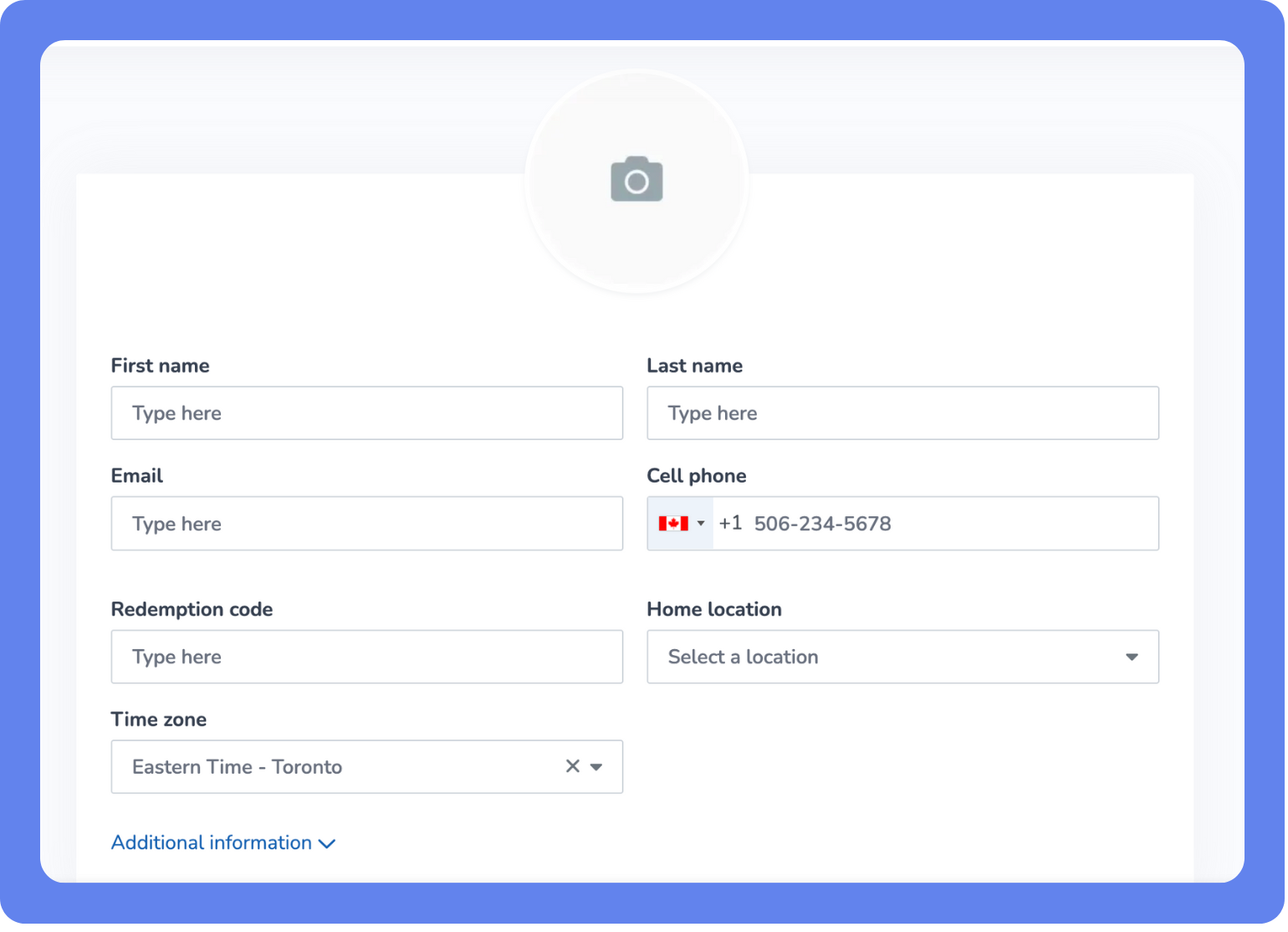
Add clients at any time, even before they’ve booked a service. This is helpful if you’re moving from another system, prepping for upcoming appointments, or want to test client communications. Clients can also add themselves by booking online, signing up through your website, or registering via the Achieve Client App.
To create a new client profile from the Staff Back Office:
Open the Main Menu, then click View All > Add Client.
Enter the client’s details.
Click Additional Information for more fields (if needed).
Click Create Account.
Add new clients from the Staff Back Office while booking appointments or classes, during checkout in the Store, or through the Elevate Staff App.
Managing Client Profiles
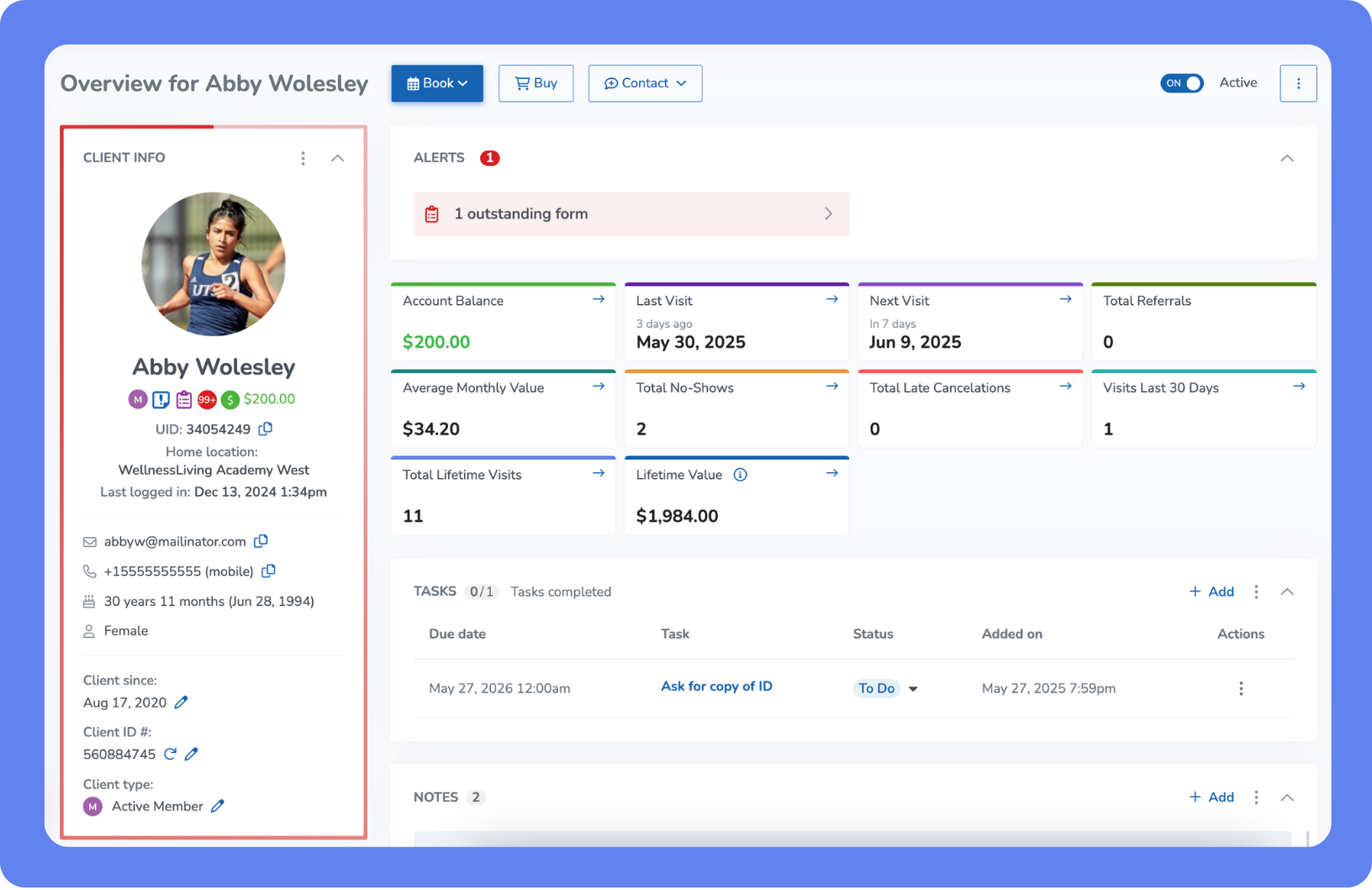
Each client has a client profile with an overview page that gives you quick access to key details like activity, preferences, and purchase history—making it easy to spot clients who might churn, track check-ins, and take action like booking a service or sending a message, all in one place.
What you can do in the client profile
The client profile gives you a full view of each client’s activity and makes it easy to take quick action when needed.
From a client profile you can:
View and edit relationships and profile details
Check visit history, documents, and notes
Add or update Purchase Options and memberships
Review completed forms, waivers, and assessments
Track rewards points, attendance, and visit milestones
Explore Clients
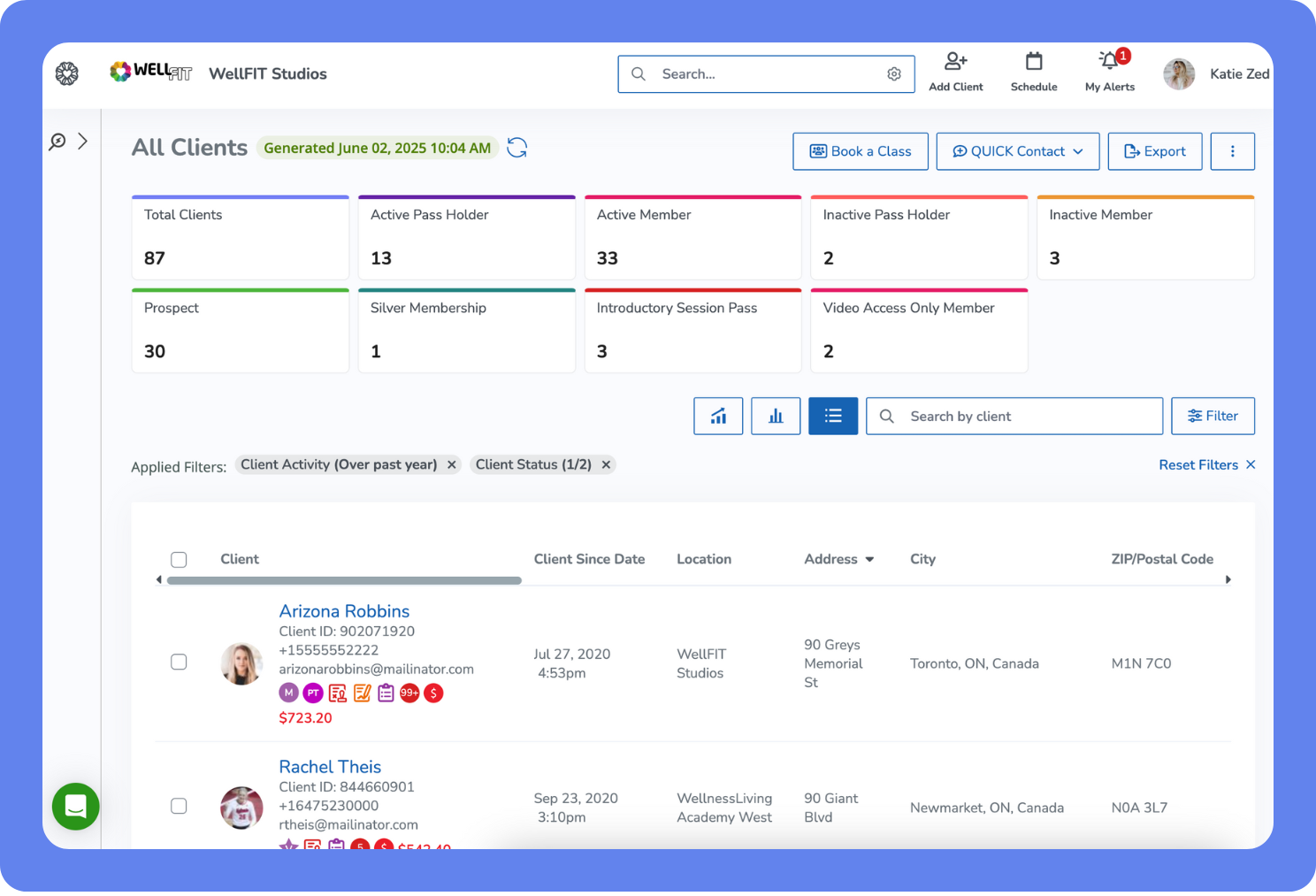
You can access client profiles in a few ways:
Use the search by name, then click their name in the list.
Open the Main Menu, then click Clients, and select the client from the list.
From other areas in the software like the schedule and reports, you can click a client’s name to be taken to their profile.
As new clients start engaging with your business, head to Main Menu > Clients to view all of your clients. This is your central hub for managing client profiles in bulk. Each profile gives you a quick view of key info like contact details, visit history, and purchase activity. Plus, summary cards at the top show total clients, new sign-ups, and other helpful insights.
Use the All Clients list to:
Quickly identify client segments with POWER Search
 or use the filter
  .
.Book a class or service for 1 or many clients at once.
Contact selected clients in bulk via email or message campaigns.
Export your client data to a .csv, .xls, or .pdf for your records or reporting.
Generate client IDs in bulk to support check-in workflows (requires the Manage client profiles permission).
Use client groups to segment your database by interest, status, or activity—for targeted messaging, promotions, and retention campaigns.
For a deeper dive, learn more about client management in WellnessLiving →