
Why verify your email domain?
Verifying your domain is essential to ensure your marketing automations actually reach your clients.
Meet Provider Requirements: Google, Yahoo, and Apple now require email authentication records to be set up on your domain. Without these, your emails are likely to be blocked or sent straight to spam.
Boost Deliverability: Authenticated domains see an 84% inbox placement rate, while unverified domains drop to 45%. Verifying nearly doubles your chances of staying out of the junk folder and reaching the primary inbox.
Build Trust: 70% of recipients check the "From" address before opening. Using a professional address instead of a "noreply" or generic email builds immediate trust and encourages client replies, signaling to providers that your messages are legitimate.
Once verified, you can set a connected email address that your marketing campaigns and automations will send from.
How to verify your email domain
To verify your email domain:
Open the App Drawer
 then click View All > Setup > Business > Email Settings.
Under Domain Verification, enter your domain name in the Domain field. This should match your business website — for example, yourbusiness.com.
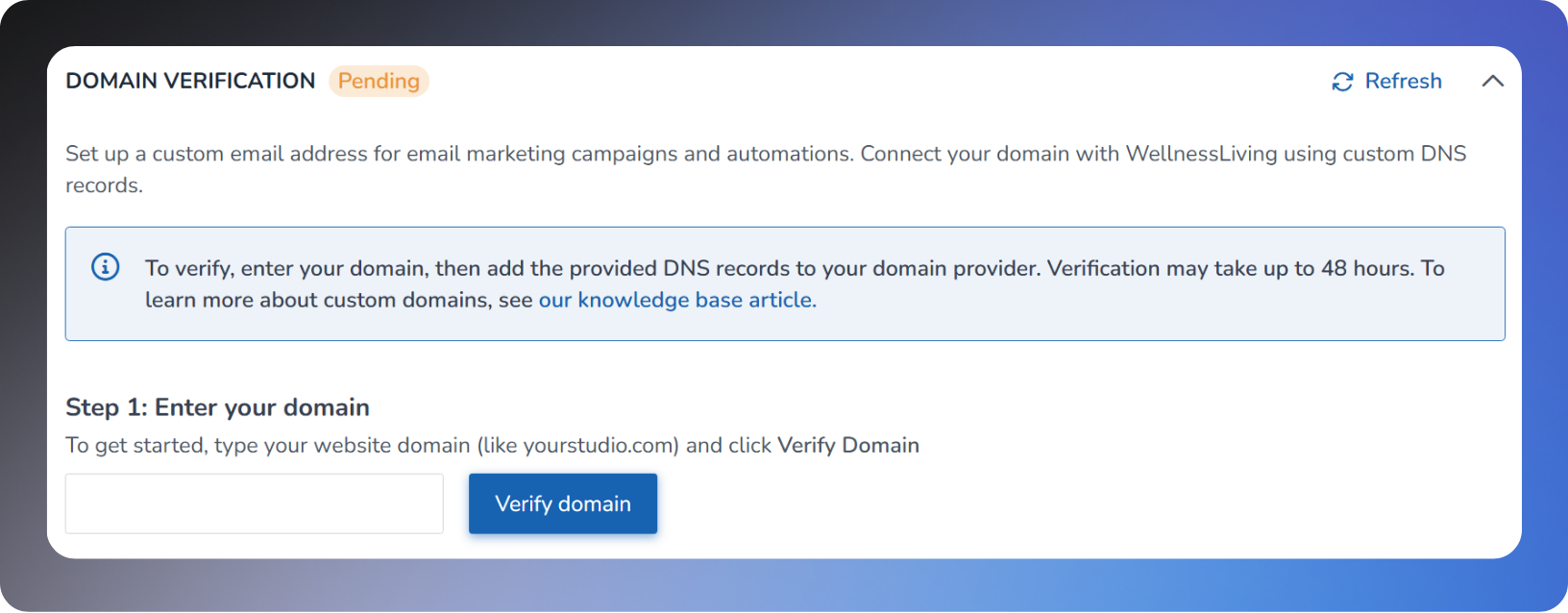
Click Verify Domain. The system generates three CNAME records and one TXT record.
Copy each record and add it to your domain provider's DNS settings. Each record displays a Name, Type, and Value that you'll need to enter at your DNS provider. Click the copy icon next to each value to copy it.
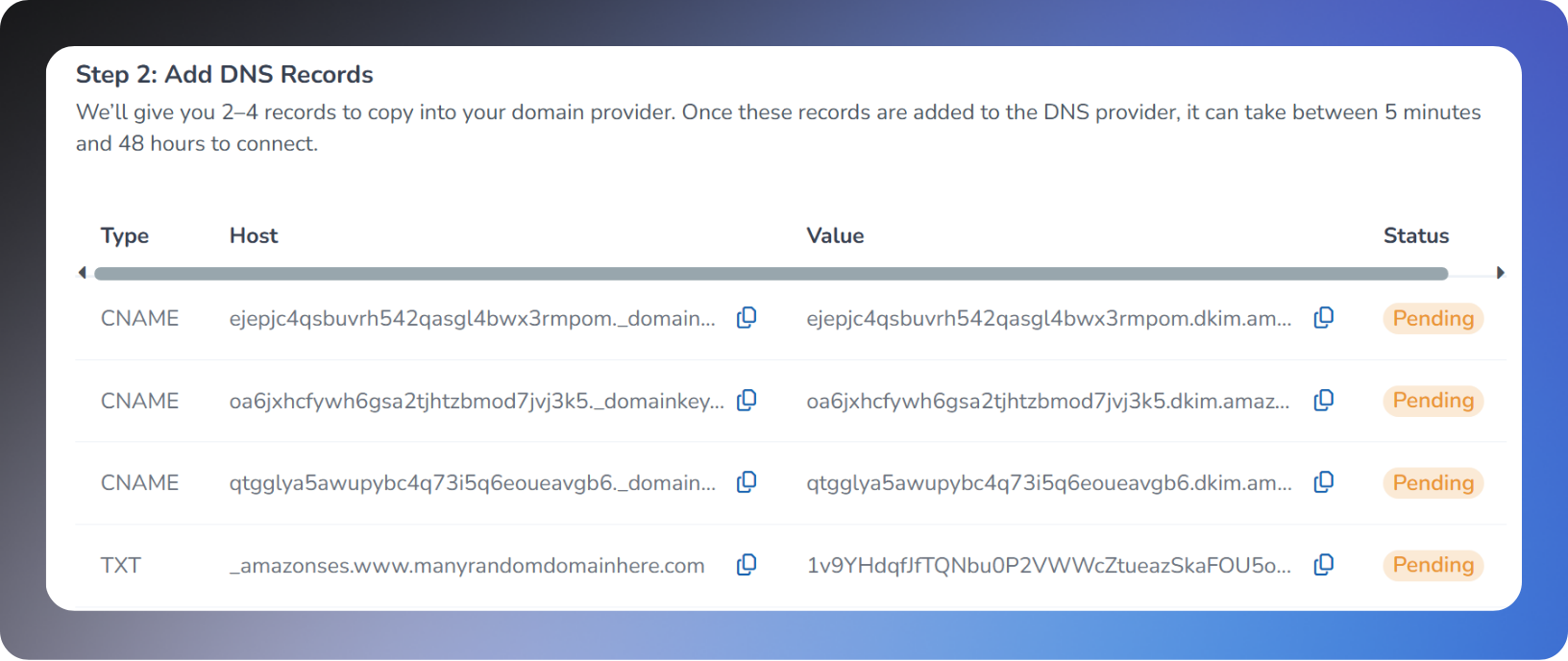
Not sure what DNS records are? That's okay. Your web hosting provider's support team can add these records for you. Just copy the values from this page and send them over.
Note: Some DNS providers add your domain name to the end of a record automatically. If yours does this, only enter the part before your domain name, not the full value shown in WellnessLiving. For example, if the Name shown is "abc123xyz789._domainkey.yourbusiness.com," enter only "abc123xyz789._domainkey."
If you need step-by-step instructions for your DNS provider, use the links in the Need help? section below the records. Links are available for GoDaddy, Namecheap, Domain.com, Bluehost, HostGator, Dreamhost, Squarespace, Cloudflare, and Wix.

Click Refresh to check your verification status:
Pending – DNS records have been submitted and are being verified. Verification can take up to 48 hours.
Failed – Verification was unsuccessful. Check that your DNS records were entered correctly and try again.
Verified – Your domain has been successfully verified.
Once your domain status shows Verified, the Connected Email Address field becomes available. Enter the email address you want your marketing campaigns and automations to send from.
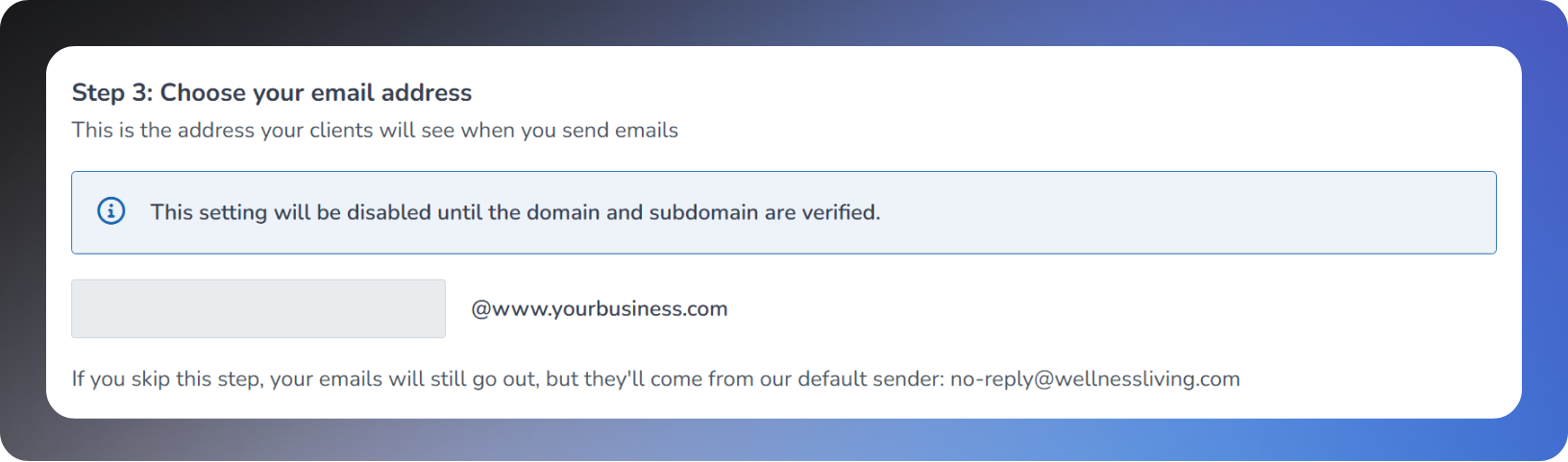
Click Update to save your connected email address.
If you need to change your domain after verification has been initiated, enter the new domain and click Update. The status will reset to Pending while the new domain is verified.