
When removing a client’s access to your business, you have the option to disable, deactivate, or delete their profile. It's recommended to use deletion sparingly, while deactivation should be the preferred action for managing client profiles without impacting historical data.
Disabling a client’s login prevents them from signing in to their account while keeping their profile fully active in your system. All of their data, bookings, and history remain unchanged, and you can re-enable their login at any time.
Deactivating a client temporarily hides their profile from your active client list while keeping all their data, purchases, and history intact. Deactivated clients can be reactivated at any time.
Deleting a client permanently removes the client from your business and is only recommended in specific circumstances, such as removing new profiles without activity or suspected spam/phishing profiles. The client no longer appears in your Client List, Search, or Reports, but you can re-add them later using their email address, though none of their previous data is restored. Deleting a client profile can’t be undone.
Disable and re-enable a client login
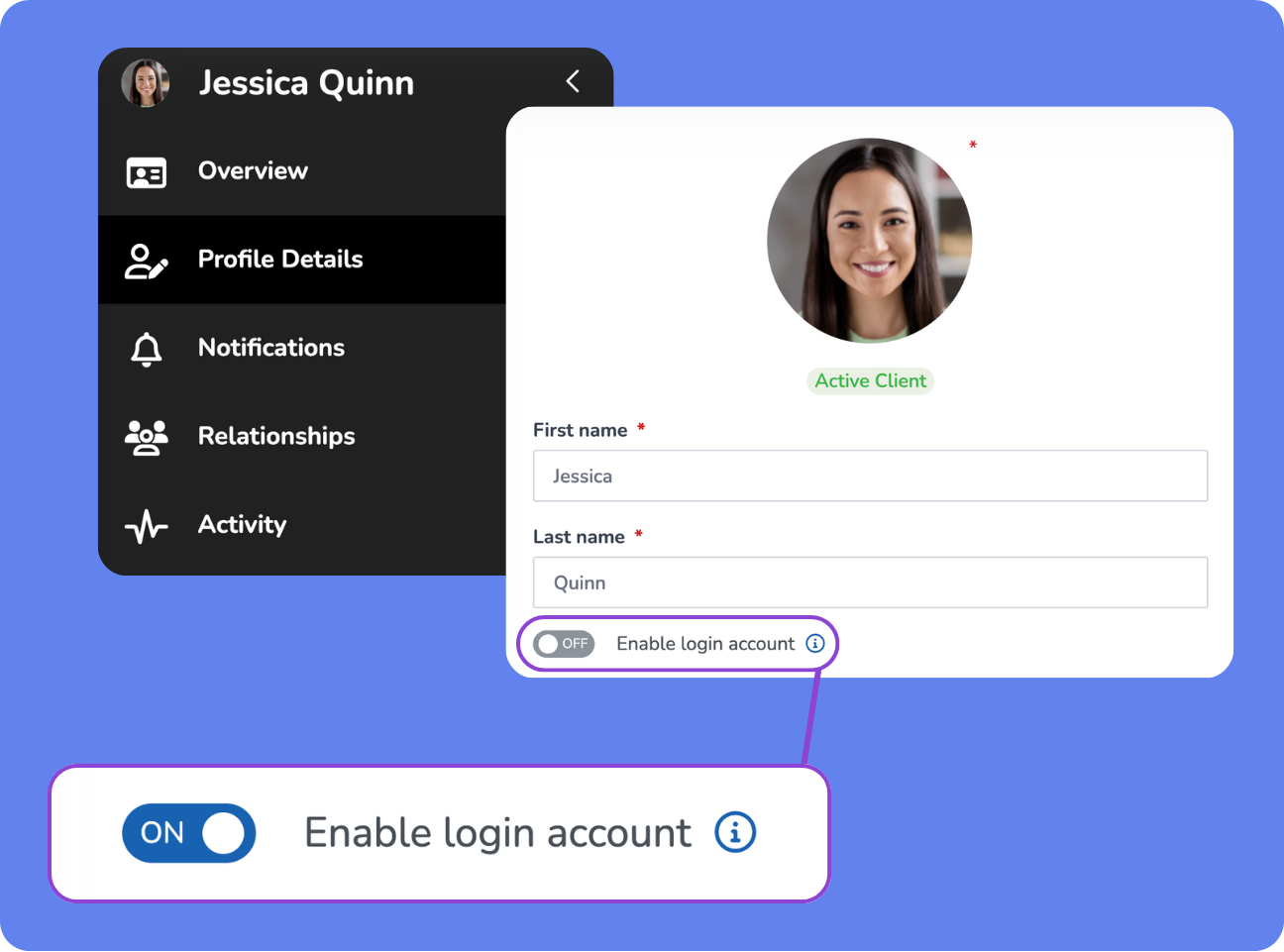
Disabling a client’s login prevents them from signing in to their account, but their WellnessLiving account remains active.
Click Search at the top of the screen, enter the client's information, and select their name from the list.
On the left-hand menu, click Profile Details.
To disable a client's login for your business:
Set Enable login account to OFF.
This only prevents your client from signing in to your business. It doesn’t impact their ability to sign in to other WellnessLiving businesses.Click Confirm in the popup.
To re-enable a client's login for your business:
Set the Enable login account to ON.
The Password that was previously associated with the account automatically populates.
If the client wants to change their password, send a password reset email.
If a client profile was created without an email address, enter the client’s email and set a password.
Click Save.
Deactivate or reactivate a client
Deactivated client profiles remain visible in your Client List and continue to appear in your Reports, but they are no longer able to log in, receive client notifications, or automated marketing messages.
This ensures historical records and reports remain accurate, supporting the overall integrity of your business data.
Before deactivating a client ensure the client doesn’t have an upcoming service booked or an active Purchase Option. Additionally, a client can’t have an associated staff member profile at the time of deactivation.
Click Search at the top of the screen, enter the client's information, and select their name from the list.
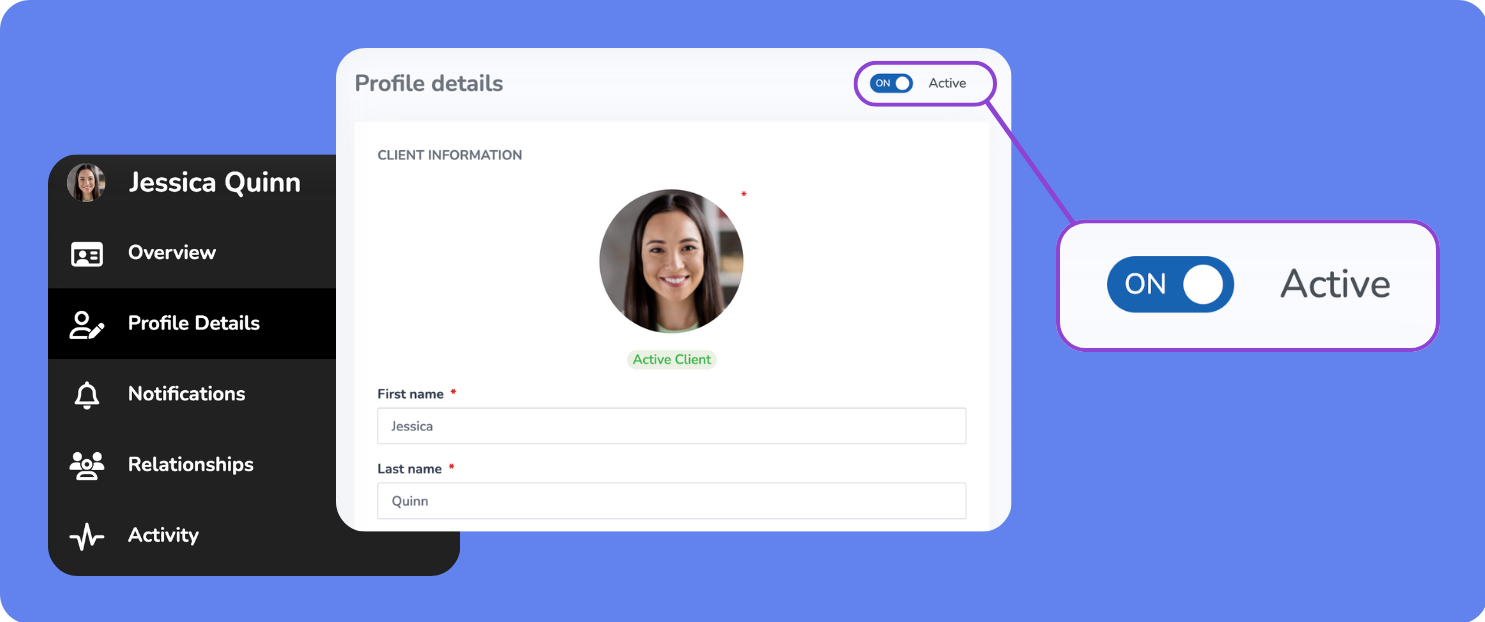
On the client’s Overview page:
Set Active to OFF to deactivate the client.
Set Active to ON to reactivate the client.
Locate deactivated clients
Deactivated clients are still accessible in your business. Here’s how you locate deactivated clients:
To locate a specific client:
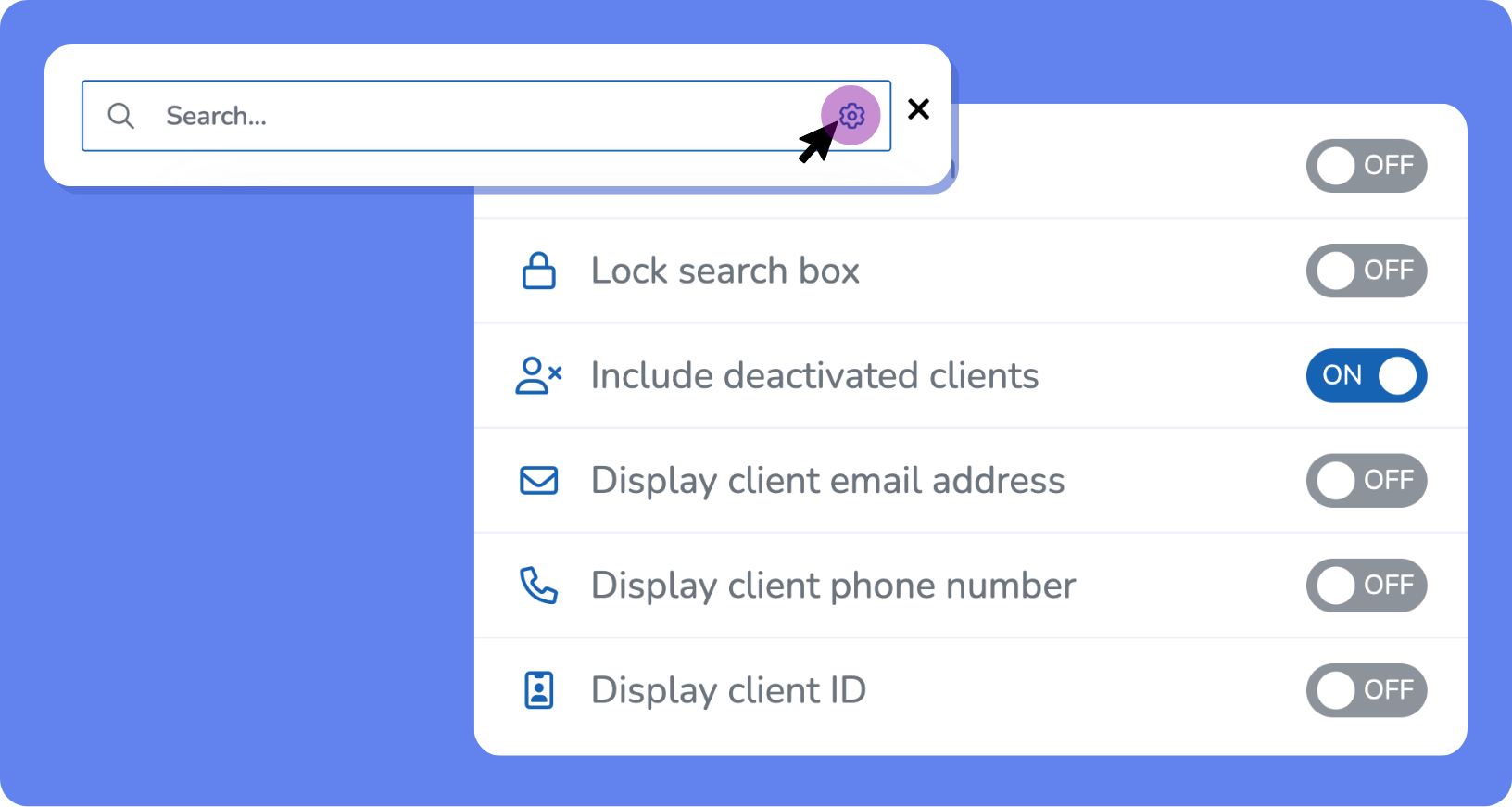
Click Search options
 in the Search box and set Include deactivated clients to ON.
Click Search at the top of the screen, enter the client's information, and select their name from the list.
To locate a list of deactivated clients:
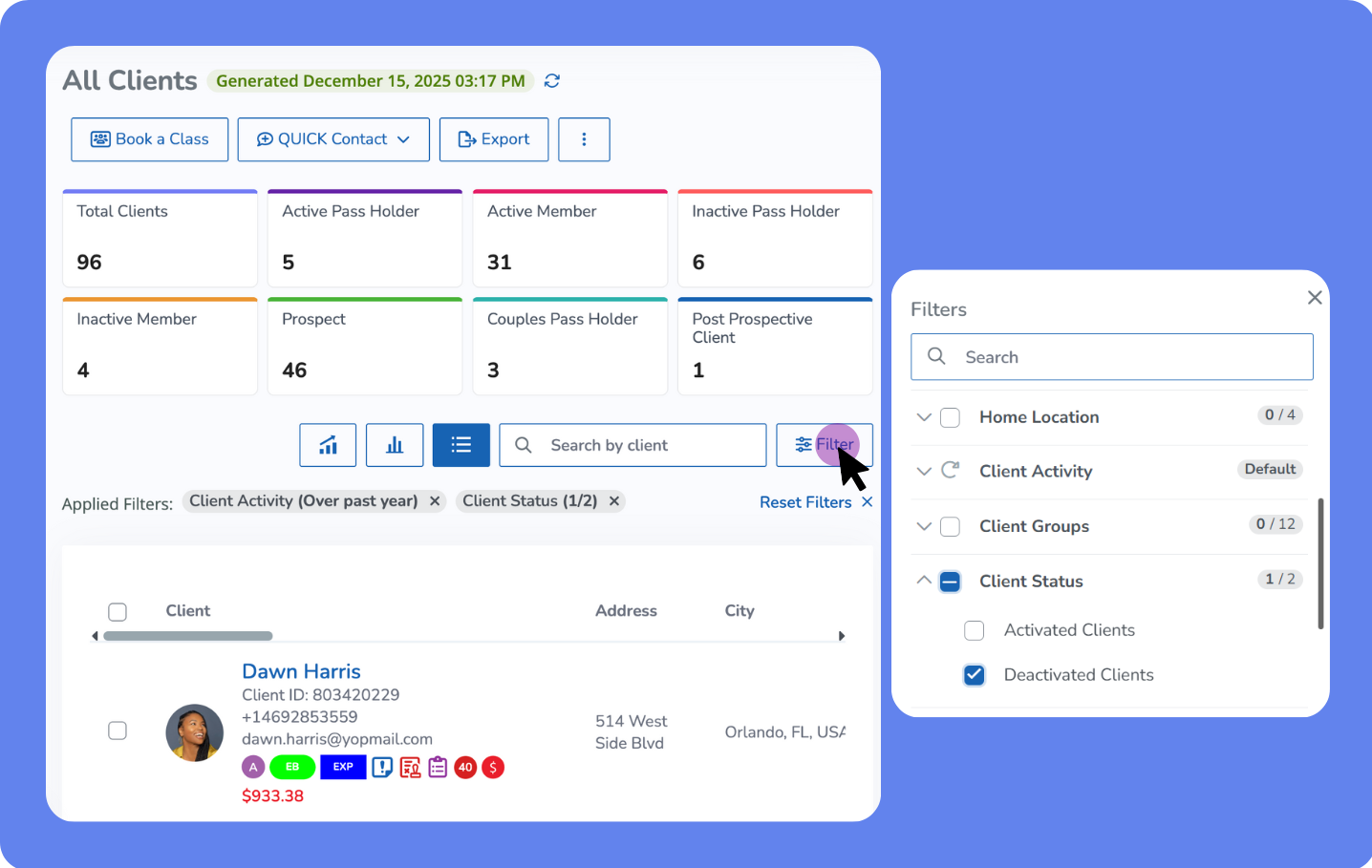
Open the App Drawer
 then click View All > Clients.
Click Filter and under Client Status, select Deactivated Clients.
Click Apply Filters.
Delete a client
Deleted clients no longer appear anywhere in your business and all client data is permanently removed, but you can re-add them later if needed. However, their previous data is not restored. The client’s name is also replaced with Deleted Client #XXXXX so any past records remain accurate while keeping the client’s identity private.
Deletion is only allowed under specific circumstances, such as removing new profiles without activity or suspected spam/phishing profiles. For all other cases, deactivation should be the primary action.
Deletion records
When a client is deleted, the system records the staff member who performed the deletion, the client ID, the time the action occurred, and the related details in the Edit log.
Deletion blockers and how to fix them
Certain conditions can prevent client profiles from being deleted. Common reasons and solutions include:
Reason for blockers | Solution |
|---|---|
The client has an outstanding account balance. | Pay off the client’s account balance in full. |
The client has an active payment plan. | |
The client has an active membership or upcoming booking. | Cancel the client’s membership and cancel all upcoming services for the client. |
The client is listed as the primary account holder in a family relationship. | Re-assign the account payer for the family relationship. |
The client is also a staff member. | Deactivate the staff member. |
To delete a client profile:
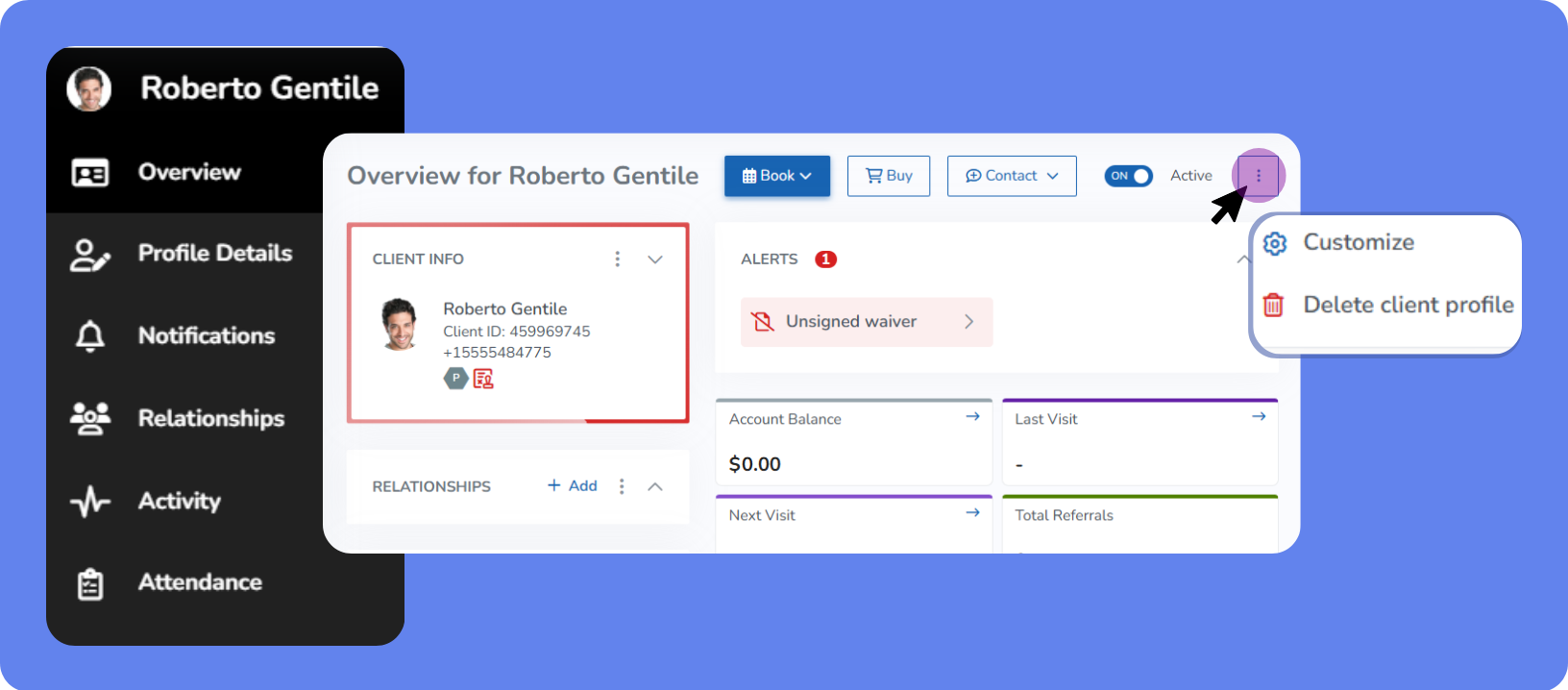
Click Search at the top of the screen, enter the client's information, and select their name from the list.
On the client’s Overview page, click Action
 and select Delete Client Profile.
In the popup, review the warning and type DELETE in the box.
Caution: Deleting a client profile can’t be undone.
Click Delete.