
You can view, make payments to, change the payment date, and cancel payment plans and tuition plans from a client’s profile. If the payment method fails, the system automatically charges the client’s account balance.
You can also access a client's active tuition plans directly from their profile Overview page by clicking View payment schedule on the plan card.
Key tips
The amount owed for each scheduled payment can't be changed. However, a one-time payment reduces the total amount owed on a payment plan. How this affects scheduled payments depends on the plan type:
For automatic membership payments, the next scheduled payment is reduced.
For other payment plans, the last scheduled payment is reduced.
To adjust a client’s payment plan without a one-time payment, cancel and remove the existing plan from the client’s profile, then resell the item with a new payment plan.
When a client with active payment plans gets sent to collections, the remaining balance from those plans is added to their account balance and reported to Aldous.
When a Purchase Option is purchased with a payment plan, the client is billed according to the payment plan, even if the Purchase Option is canceled. The payment plan must be canceled to stop future payments.
When a payment plan includes items from multiple revenue categories, the payment is split and attributed proportionally to each item's revenue category in the Sales Summary by Revenue Category Report.
View or adjust a payment on a payment plan or tuition plan
To make a payment on a payment plan or tuition plan:
Click Search
 at the top of the page, then enter the client’s information, and click their name to access their client profile.
On the side menu, click Account.
To make a payment on a payment plan for a Purchase Option, click Passes & Memberships, then select the Purchase Option from the list, and click Payment Plan.
For all other payment plans or tuition plans, click Billing & Account Balance > View All Payment Plans, then select the payment plan from the list.
To make a payment on a payment plan:
Click Make a payment.
Enter the One-time payment amount.
Select one or more payment methods and enter the client’s information.
Click Complete.
To change the date of a future scheduled payment:
Click the payment date you want to modify.
Select a date for the payment from the calendar. This won’t affect any other payment dates.
Cancel a payment plan or tuition plan
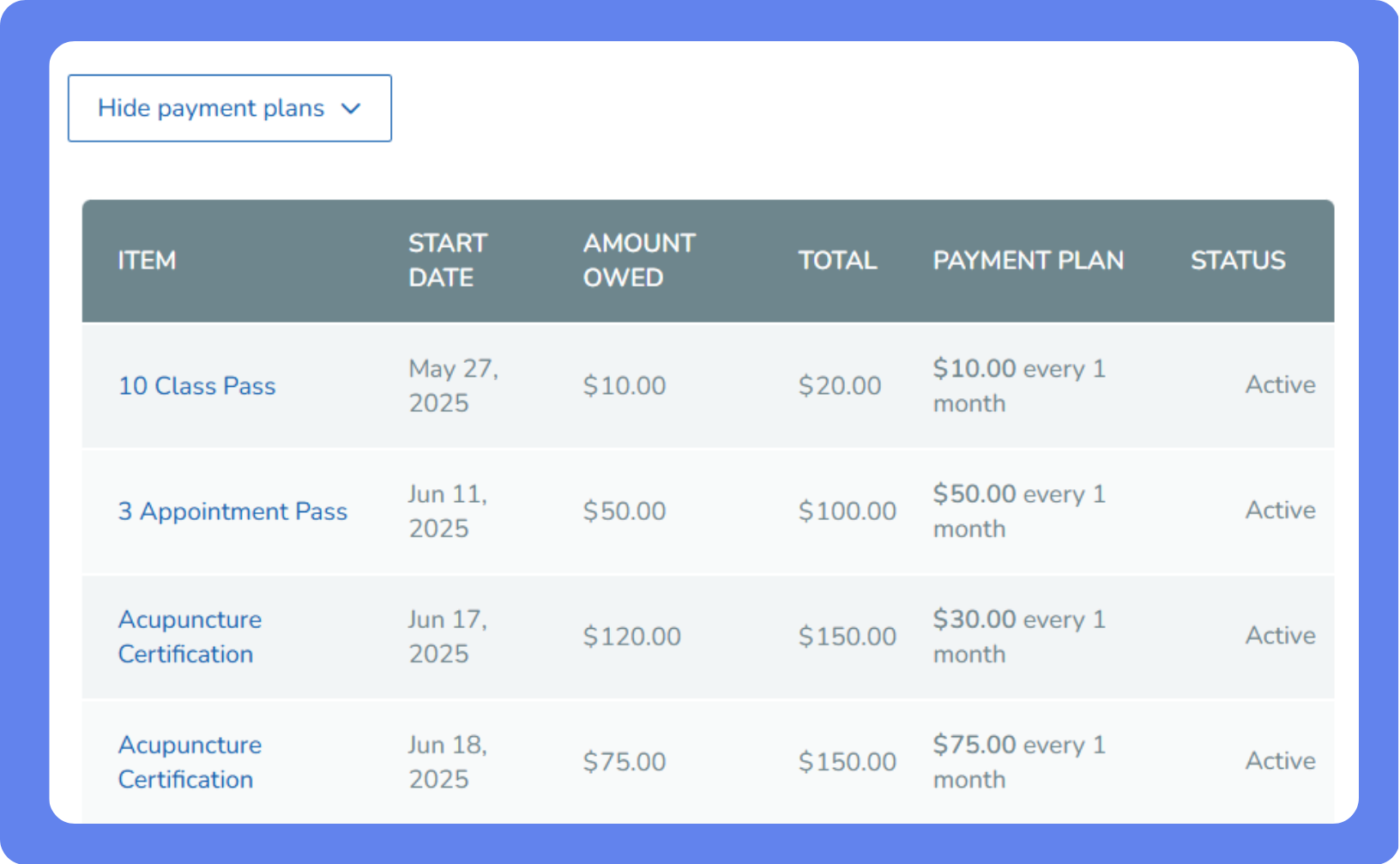
To cancel a payment plan or tuition plan:
Click Search
at the top of the page, then enter the client’s information, and click their name to access their client profile.On the side menu, click Account > Billing & Account Balance > View All Payment Plans.
Select the payment plan or tuition plan from the list.
At the top of the page, click Cancel this payment plan.
In the confirmation popup, click OK.