Add a new staff member to your business to give them access to various business functions in WellnessLiving. To better understand staff members, check out our Overview of staff members.
When a staff member is added, they can sign in to their account and an associated client profile is automatically created for the staff member. If a staff member has more than one client profile, merge the client profiles together.
After creating a staff member profile, you can update their details such as default location, pay rates, working hours, and available services at any time.
Add a staff member
To add a staff member to WellnessLiving:
Open the App Drawer
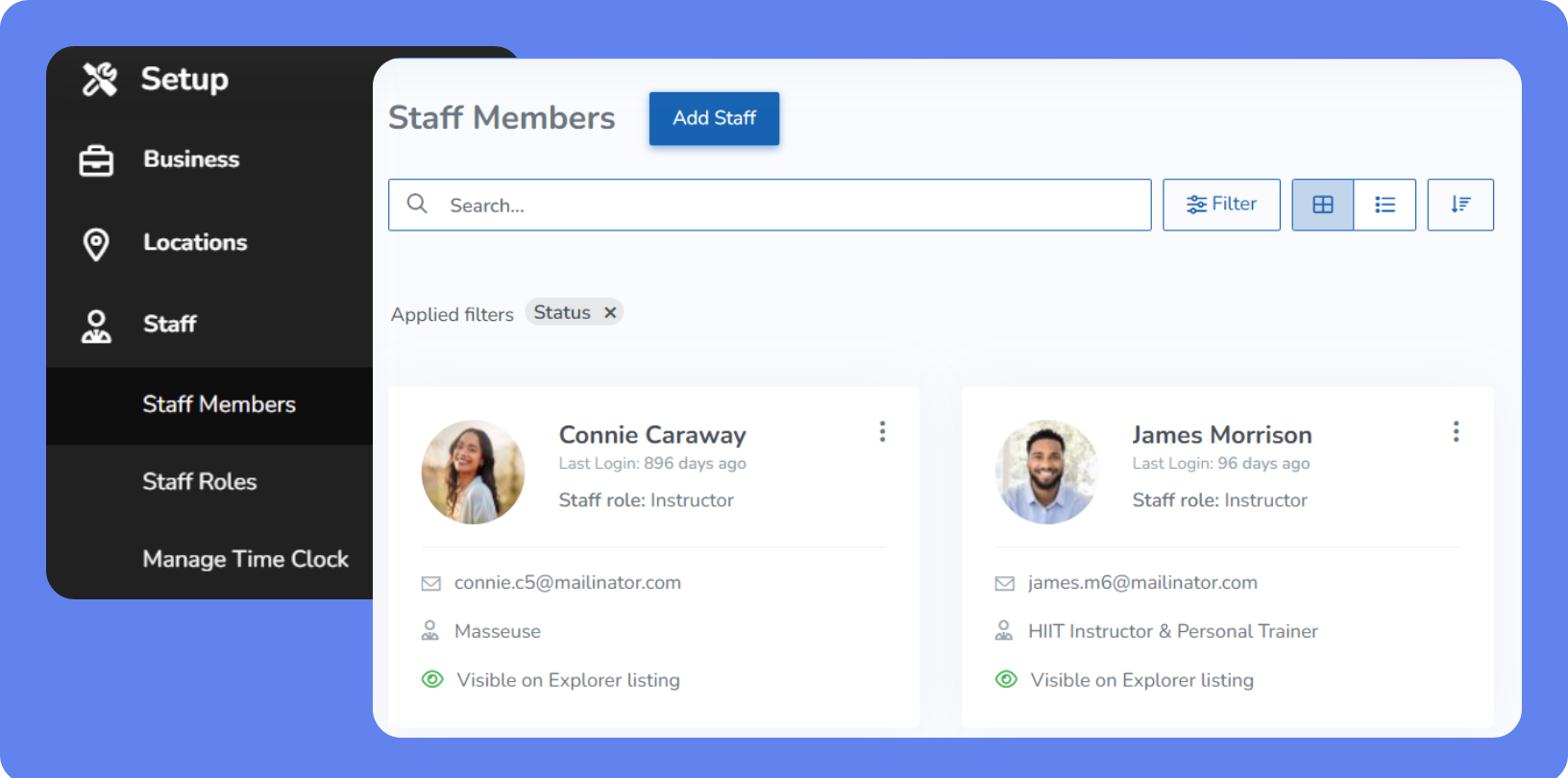
 then click View All > Setup > Setup > Staff > Staff Members.
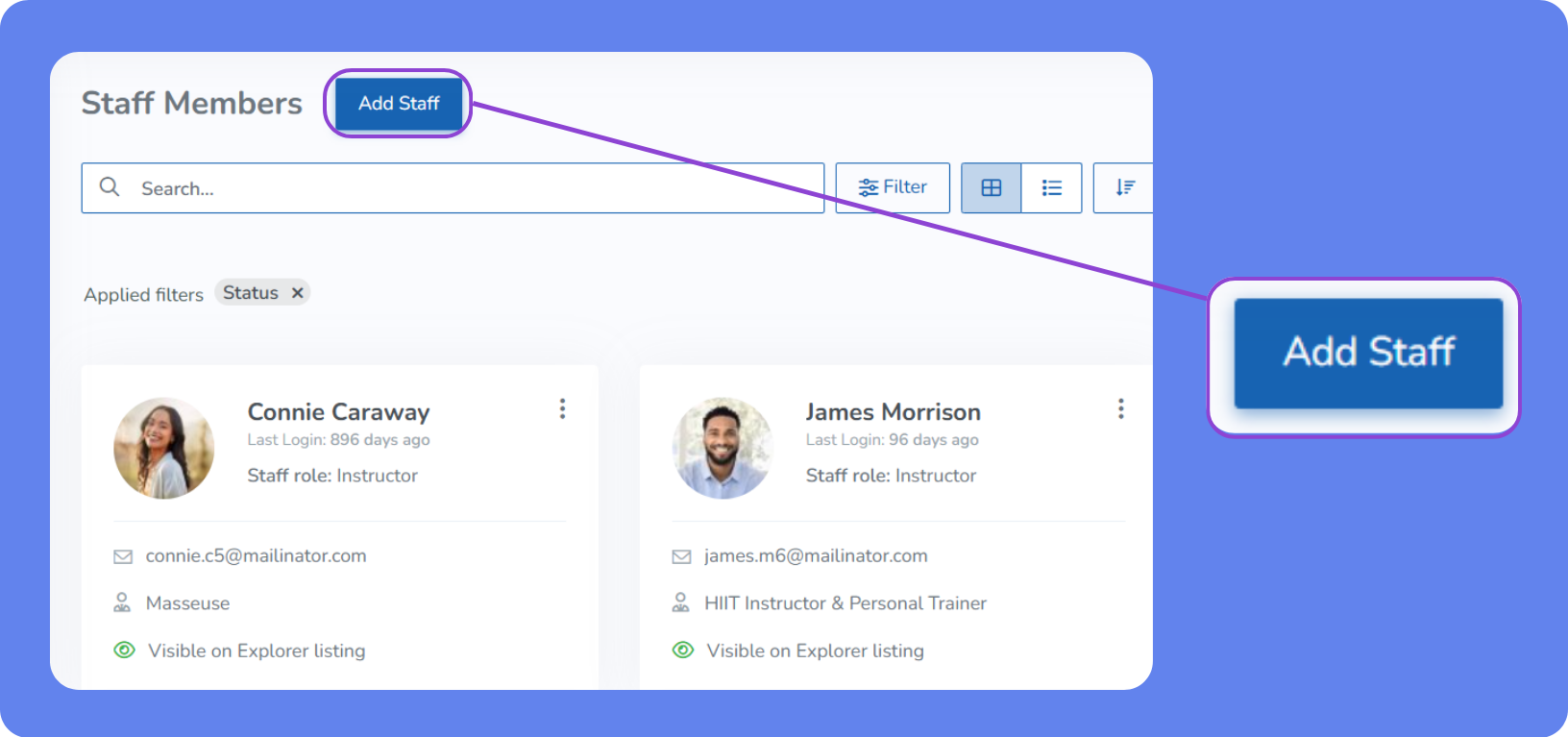
Click Add Staff.
Enter the staff member's profile information.
Click Create Staff Member.
Modify a staff member
To modify a staff member's profile:
On the Staff Members page, select the staff member you want to modify from the list.
Modify the staff member’s profile and click Save.
Deactivate a staff member
Before deactivating a staff member, ensure they're removed from all services or active sessions. Modify all upcoming classes and events to have different staff. Reschedule or early cancel appointments and assets to another staff member.
To deactivate a staff member:
Select the Staff Member's profile from the staff members area.
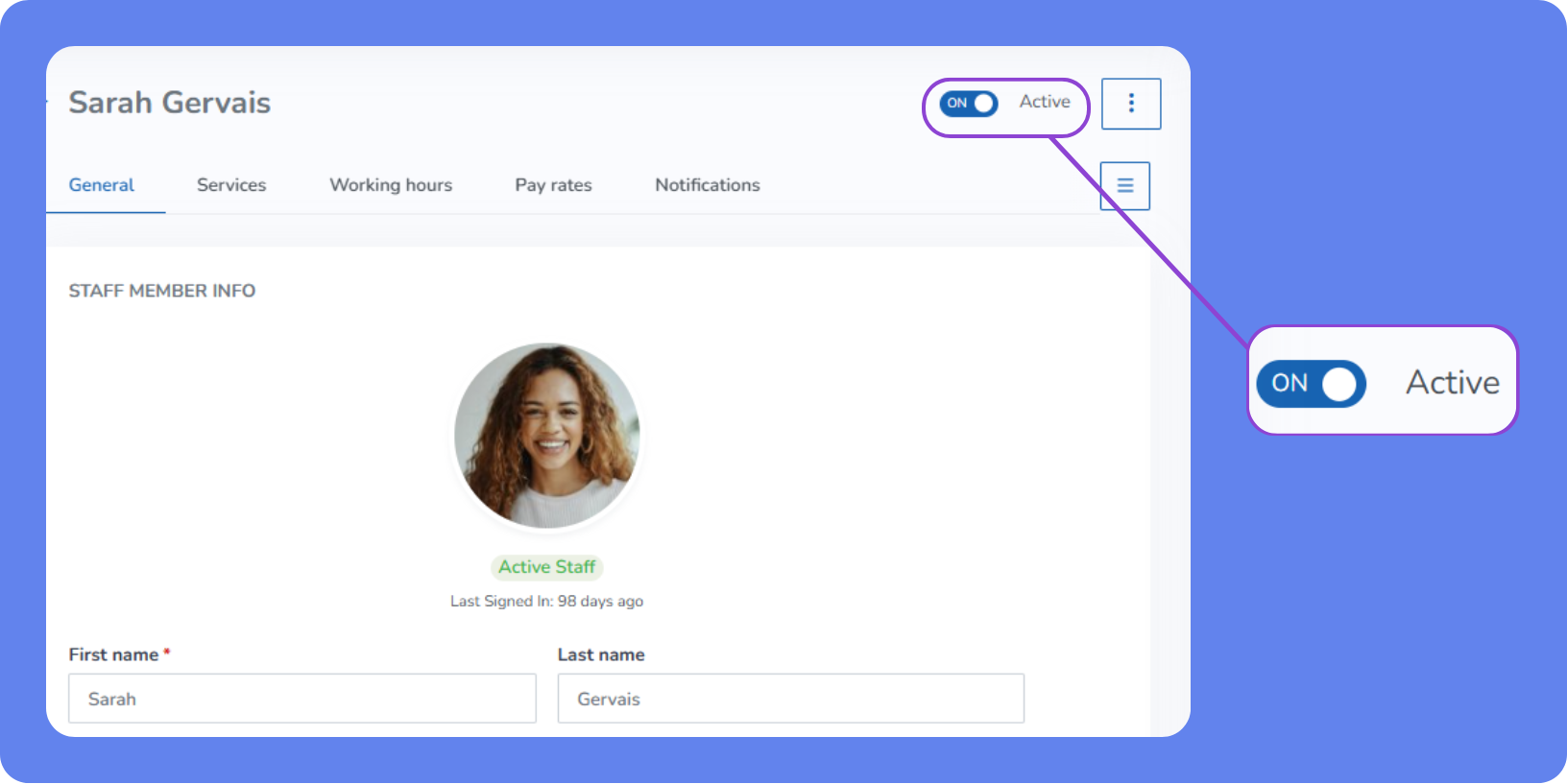
Set Active to Off
Click Save