
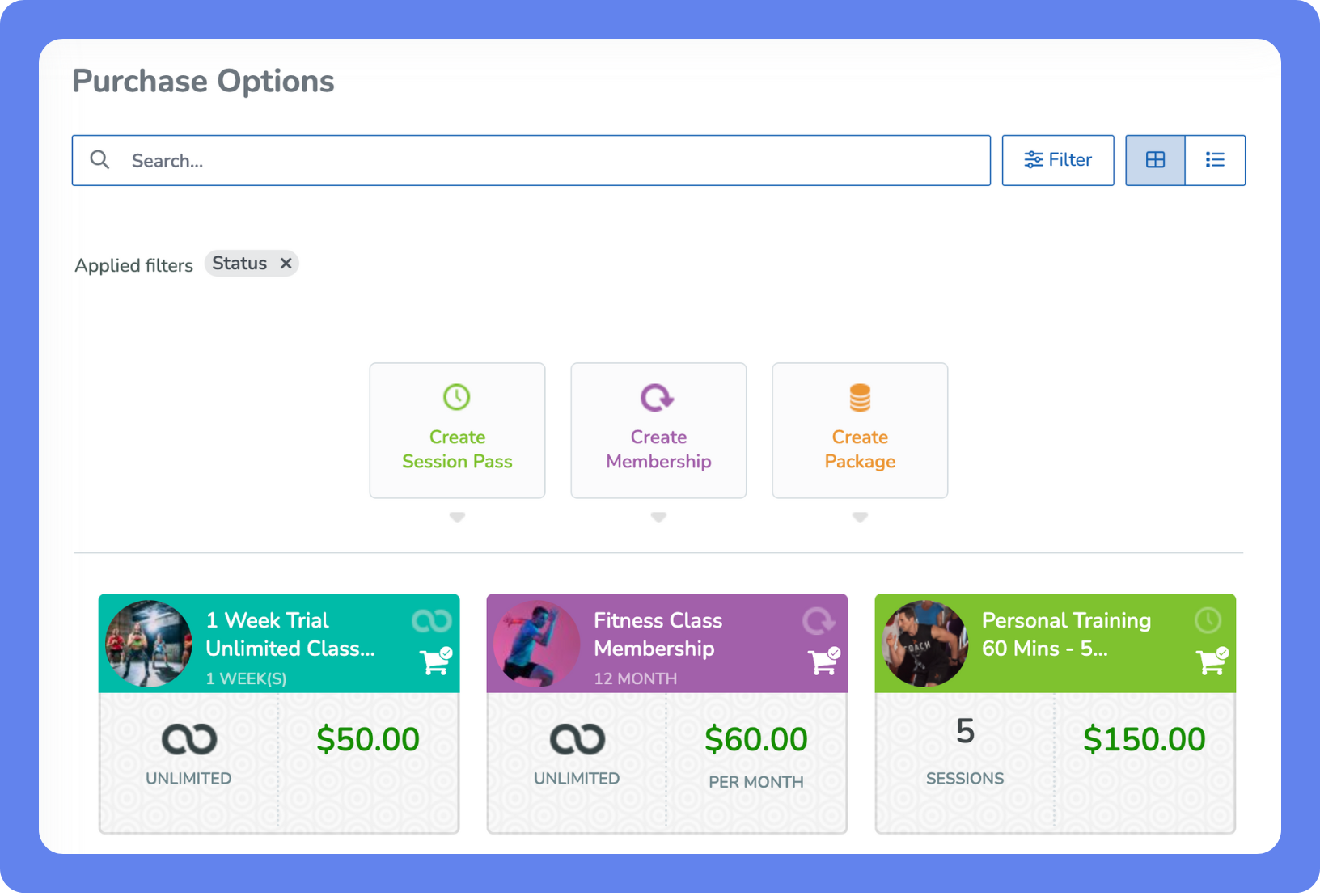
Purchase Options define how clients pay for your services—whether they’re dropping in for a single session or signing up for a long-term membership. Each option controls access, pricing, and how your business earns revenue.
Think of Purchase Options in WellnessLiving as the key to unlock your services. Clients buy them, then use them to book what they need. Purchase options include drop-ins, memberships, session passes and packages, each designed to fit different client needs and booking preferences. Many clients hold more than one at a time, like a monthly gym membership alongside a pass for personal training sessions.
Drop-in – A flat rate (set up in each service) charged to cover a single session, such as a single yoga class or consultation, without a commitment.
Membership – Access to services with a set duration that can expire, auto-renew, or convert into a different membership once the term ends.
Session Pass – A set number of visits, such as 10 spin classes with a 10-class pass.
Package – Bundle items like session passes, memberships, gift cards, and products ( like a karate starter package with a membership for weekly classes, a 5-pack of private sessions, and a uniform included).
Guest Pass – Allows a member to invite a guest to attend a single session at your business.
To create a Purchase Option, open the App Drawer  then click View All > Setup > Store Configuration > Purchase Options.
Drop-Ins
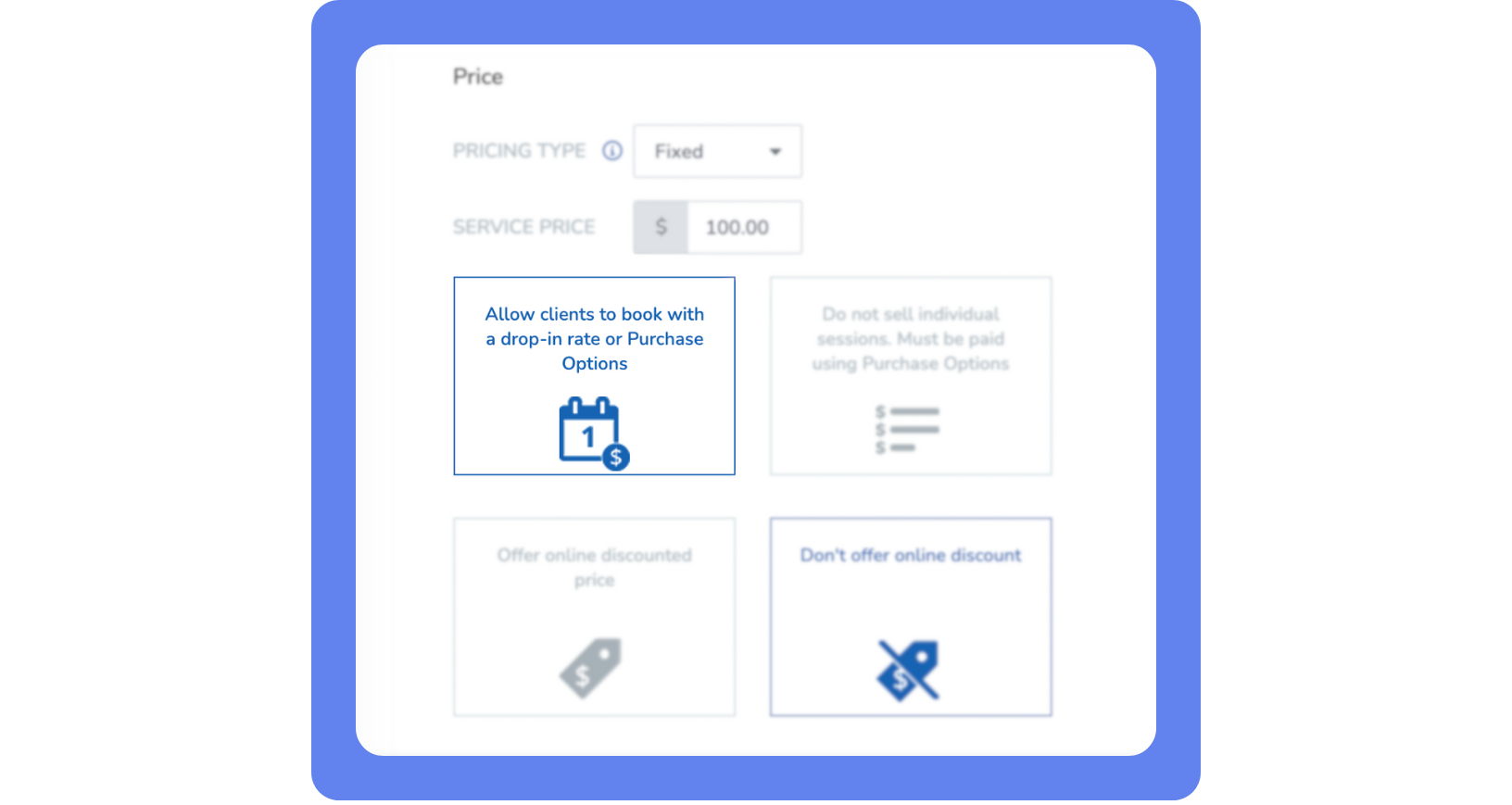
A drop-in is a simple, one-time way for clients to book and pay for a single session—no membership or pass required. It’s perfect for trying out a class, appointment, or service without commitment, offering flexible pay-as-you-go access, intro specials, and even the option to buy multiple drop-ins for future visits.
How to Set Up Drop-Ins
You can allow clients to pay for individual sessions for any service you provide. To set up a drop-in rate for a service:
Open the App Drawer
then click View All > Setup > Services.
Select the Service you’d like to edit.
In the service settings, select Allow clients to book with a drop-in rate or Purchase Options.
For more details about how drop-ins work—like cancellations, unused drop-ins, or buying multiples—check out the full guide to drop-ins here.
Session Passes
A session pass is a type of Purchase Option that allows clients to prepay for a set number of visits. For example, a client might buy a 10-class boxing pass that they can use over time. Session passes expire either after all sessions are used or on a set expiration date.
You can apply session passes to a variety of service types, including appointments, classes and events, asset bookings like room or equipment rentals, or gym visits.
To create a session pass:
Open the App Drawer
then click View All > Setup > Store Configuration > Purchase Options.
Click Create Session Pass.
Under Purchase Option Service Category, select the type of service to be offered by the session pass.
Enter your client-facing details and configure the additional settings to your business needs.
Click Save.
Memberships
Memberships are recurring Purchase Options that grant clients ongoing access to specific services, such as classes, appointments, or gym visits. You can set billing cycles, visit limits, and pricing to fit your business model.
Each membership supports one service category. If you need to include multiple service types, consider creating a package instead.
Follow these steps to create a new membership:
Open the App Drawer
then click View All > Setup > Store Configuration > Purchase Options.
Click Create Membership.
Under Purchase Option Service Category, select the type of service to be offered by the membership.
Enter your client-facing details and configure the additional settings to your business needs.
Click Save.
Packages
With packages, you can bundle services, Purchase Options, and products—making them ideal for promotions, seasonal offers, or new client onboarding specials.
To create a package:
Open the App Drawer
then click View All > Setup > Store Configuration > Purchase Options.
Click Create Package.
Fill in the purchase option’s General Information details.
Under Included Items, select the items for the package and set the total price, applying any discounts if needed.
Click on the options under Advanced Settings and the ⓘ buttons for more details as you configure the remaining package settings.
Click Save.
Guest Passes
A single-session pass that a member can use to invite a guest to attend a gym visit at your business. Guest passes are created here and then assigned to memberships, so members can share access with guests without staff needing to manually manage each visit. This helps you attract new clients, increase member retention, and add value to your memberships.
To create a guest pass:
Open the App Drawer
then click View All > Setup > Store Configuration > Purchase Options.
Click Create Guest Pass.
Enter your client-facing details and configure the settings to your business needs.
Click Save.