
Clients can sign a required waiver during registration or when booking a service. A client can sign a waiver for themselves or on behalf of minors whose client profiles are linked as a relationship.
A minor must have their First name, Last name, Email, Date of Birth and Home location completed on their profile before a waiver can be signed.
Sign an online waiver as a client
Desktop - Self Registration Web App
To sign an online wavier using the Self Registration Web App:
Click Find an existing client and enter your information in the box.
In the list of clients that is displayed, click the arrow
 beside your name, then click Sign Waiver.
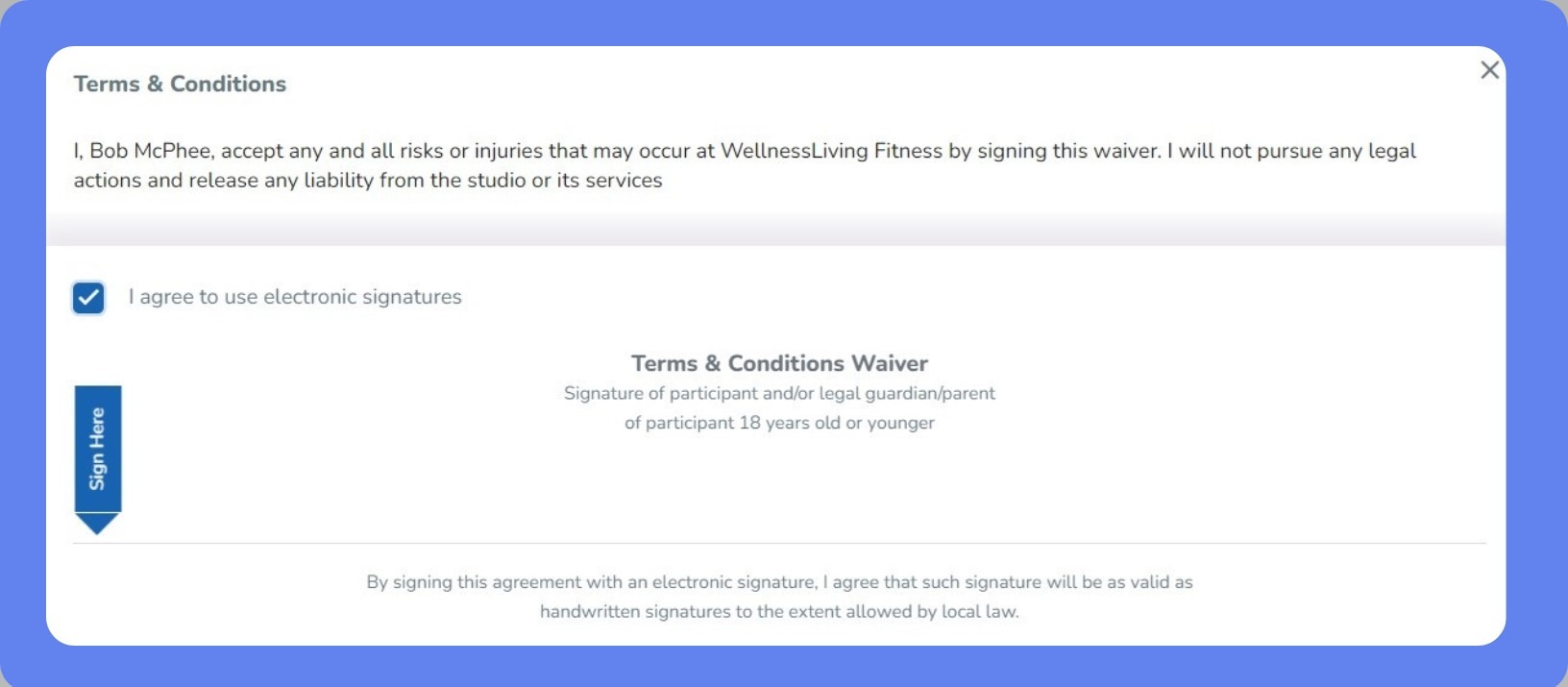
Select I agree to use Electronic Signatures.
Use your finger, stylus or a mouse to draw your signature on the line below Signature of participant and/or legal guardian/parent of participant 18 years old or younger.
Click Submit.
When more than one waiver needs to be signed, click Next to continue to the next waiver.
Desktop - Client Portal
To sign an online wavier using the Client Portal:
If you're not automatically prompted to sign the online waiver, click My Profile in the top menu, then click the Waiver tab.
To sign a waiver on behalf of a minor, click your profile icon in the top right corner of the screen, then select the family member's name from the list.
Select the I Agree to Use Electronic Signatures checkbox.
Use your mouse to draw your signature on the line below Signature of participant and/or legal guardian/parent of participant 18 years old or younger.
Click Submit.
Mobile - Achieve Client App
To sign an online wavier using the Achieve Client App:
If you’re not automatically prompted to sign the online waiver, tap the My Profile tab, then tap Waiver.
To sign a waiver on behalf of a minor, tap the My Profile tab, then tap the profile icon for the family member's account you want to access.
Use your finger to draw your signature on the line below Signature of participant and/or legal guardian/parent of participant 18 years old or younger.
Select the I Agree to Use Electronic Signatures checkbox.
Tap Submit.
View an online wavier as a client
To view a wavier from the Client Portal, click the My Profile tab > Waiver.
To view a wavier from the Achieve Client App, tap the My Profile tab > Waiver.