
Add and manage your staff
Setting up your staff members is one of the most important steps in getting WellnessLiving working for your business. Whether you’re a solo operator with contractors or manage a full team, this is where you define who delivers services, when they work, and what they can access in the system.
Add staff members
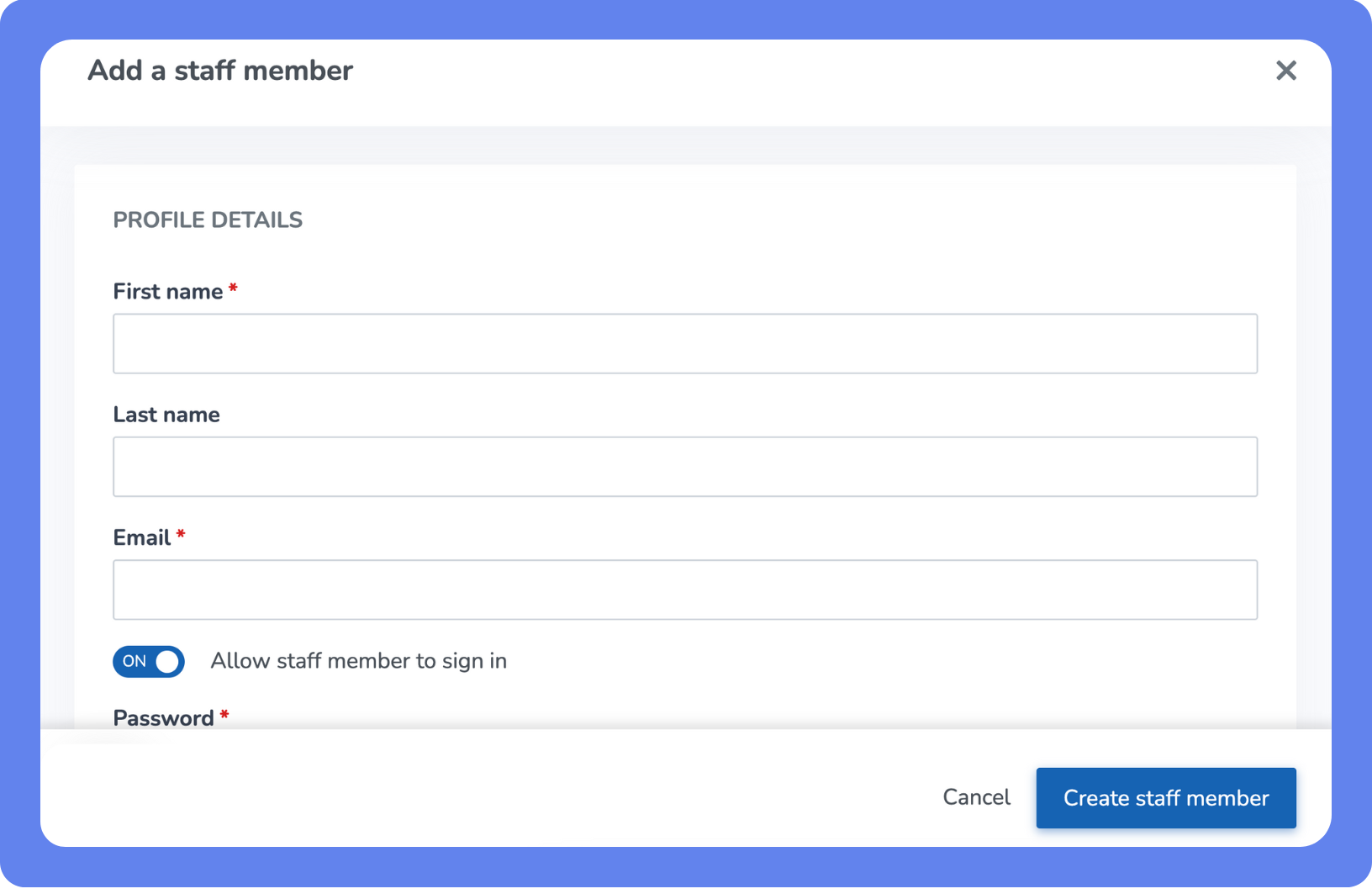
Each staff member in WellnessLiving has a dedicated staff profile that connects them to your schedule, services, payroll, and communications. Permissions and visibility settings allow you to control staff access to client information, schedules, and financial tools.
To add a staff member:
Open the Main Menu, then click Setup > Staff
Click Add Staff.
Complete the required fields (marked with red *). You also have the option to add:
Staff Role – Defines their permissions (like Admin, Instructor, Front Desk)
Working Location – If you operate from more than one site
Employment Start Date
Status – Active, Inactive, or Terminated (used for scheduling and payroll visibility)
Click Create Staff Member.
After creating the staff profile, you’ll have the option to enable the services they offer, set their working hours and availability, define their pay rates, and customize their notification preferences for booking alerts, cancellations, and shift reminders.
Set up working hours
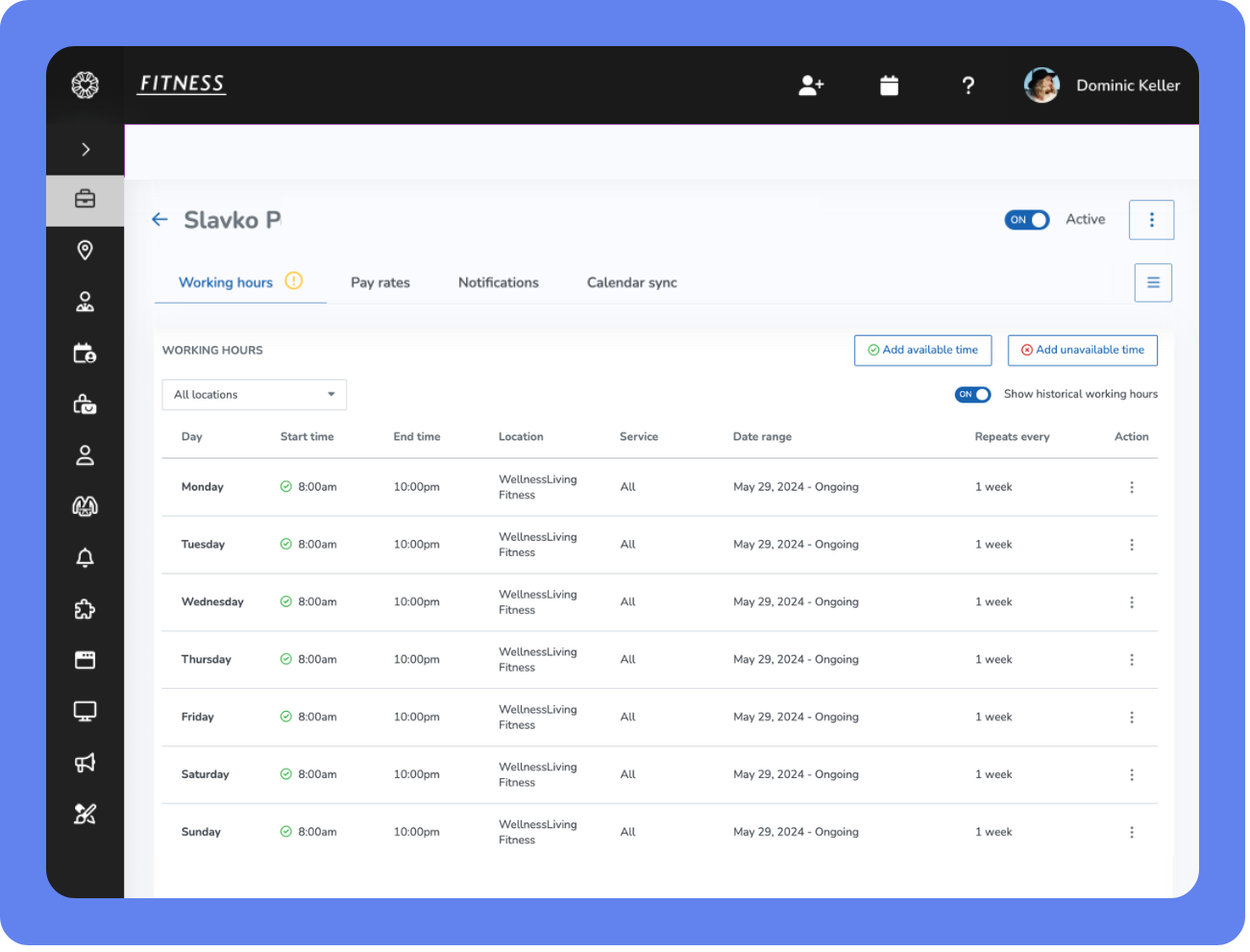
Once your staff member is added, define when they’re available for bookings. This ensures clients can only reserve services when your team is ready and avoids double-booking.
To set working hours from the staff member’s profile:
Open the Main Menu, then click View All > Setup > Staff > Staff Members.
Select the staff member and click Working hours.
Click Add available time or Add unavailable time.
Set the location, date range, days, and times.
Choose whether the availability applies to all or selected services.
Add any notes and click Save.
You can also manage hours from the schedule by selecting the staff member and modifying their availability there.
Set staff member pay rates
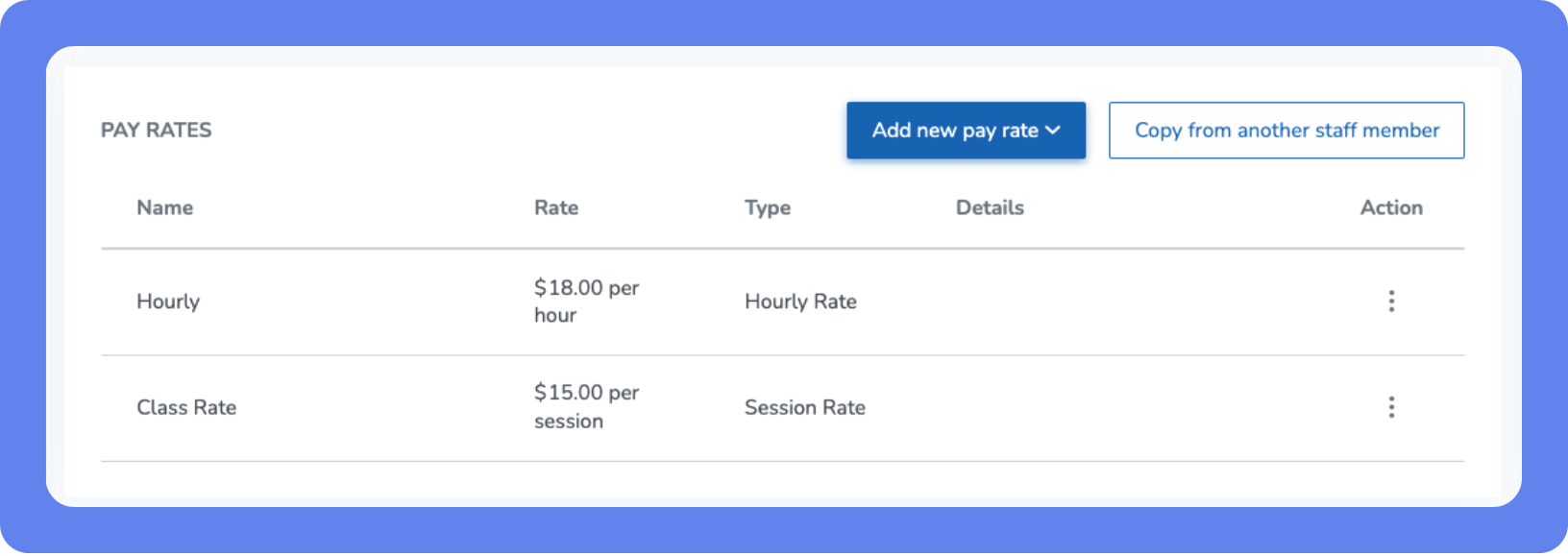
WellnessLiving gives you flexible options for calculating pay based on how your business compensates staff.
You can set hourly pay for time-based roles like front desk or trainers, flat fees per service (like $25 per class), percentage-based commissions (like 40% of service revenue), or tiered and blended rates for more complex compensation structures.
To set up pay rates from the staff profile:
Open the Main Menu, then Click View All > Setup > Staff.
Select the staff member.
In their profile, click Pay Rates.
To copy rates, select Copy from another staff member.
To add a new rate, click Add new pay rate, enter the details, and click Save.
Setting this up early ensures your payroll reports are accurate from day one—and helps you track profitability by team or service.