
Services
Services are the foundation of your schedule. They define what you offer, how clients access it, and how your business runs day to day. Whether you run a fitness studio, wellness clinic, martial arts school, or something in between, each service type plays a unique role in how clients engage with your business.
Here’s a quick breakdown of each one:
Appointments – One-on-one services scheduled at specific times. Think personal training, massage therapy, wellness consults, or private lessons.
Classes – Recurring group sessions. Perfect for yoga studios, fitness bootcamps, martial arts schools, or dance programs.
Events – One-time or multi-day offerings with limited availability. Use these for workshops, retreats, teacher trainings, or seasonal programs.
Book-a-Spot Assets – Reservations for specific rooms or equipment, like massage rooms, spin bikes, or boxing bags—used in gyms, spas, and boutique studios.
Gym Visits – General facility access without booking a specific time slot. Ideal for open gym hours, co-working spaces, or casual drop-ins.
You can enable just one or all five depending on how your business operates.
Set up available services
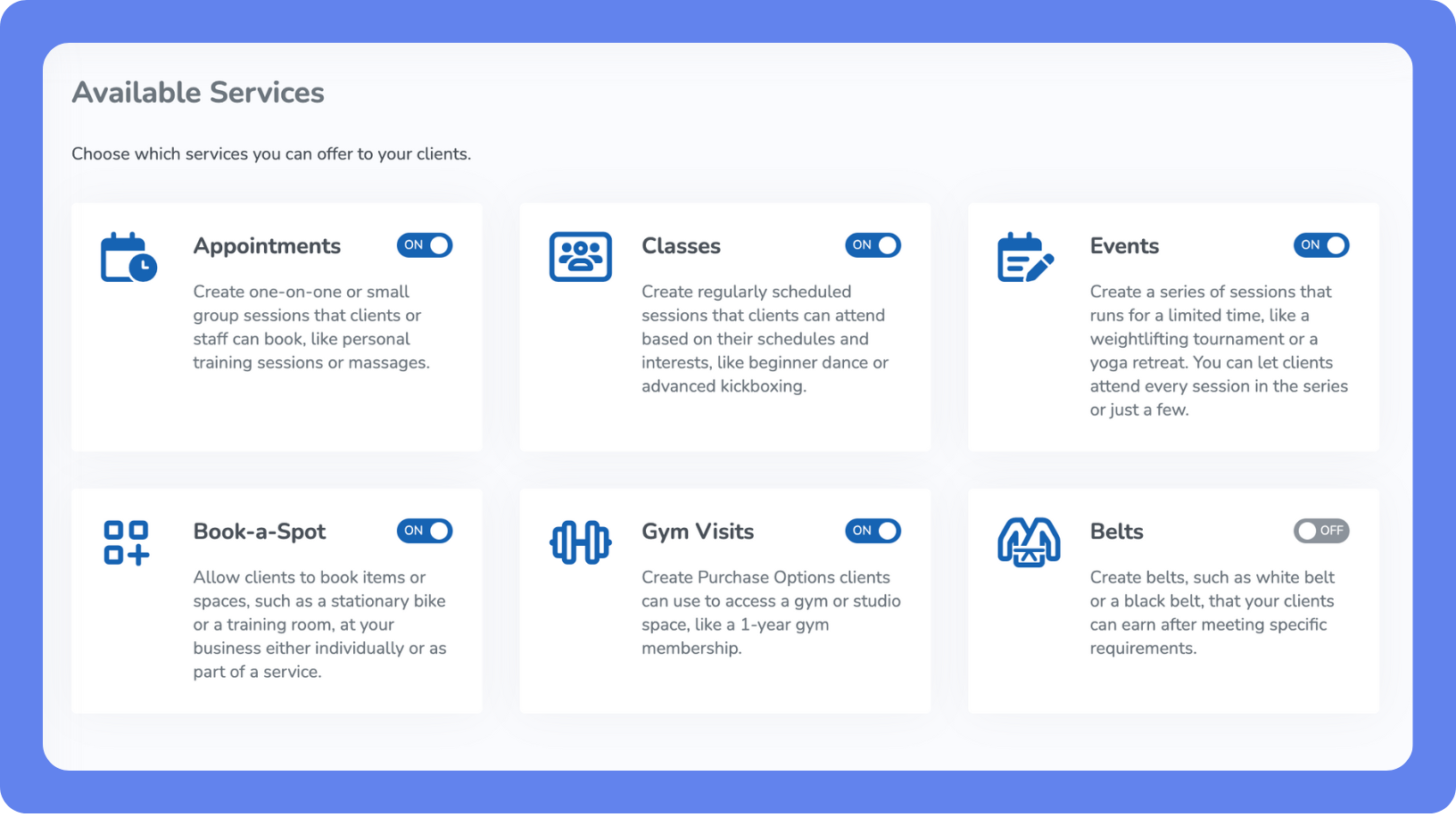
To enable your business’s available services, open the Main Menu, then click Setup > Services, and each available service type to ON.
Add Appointment
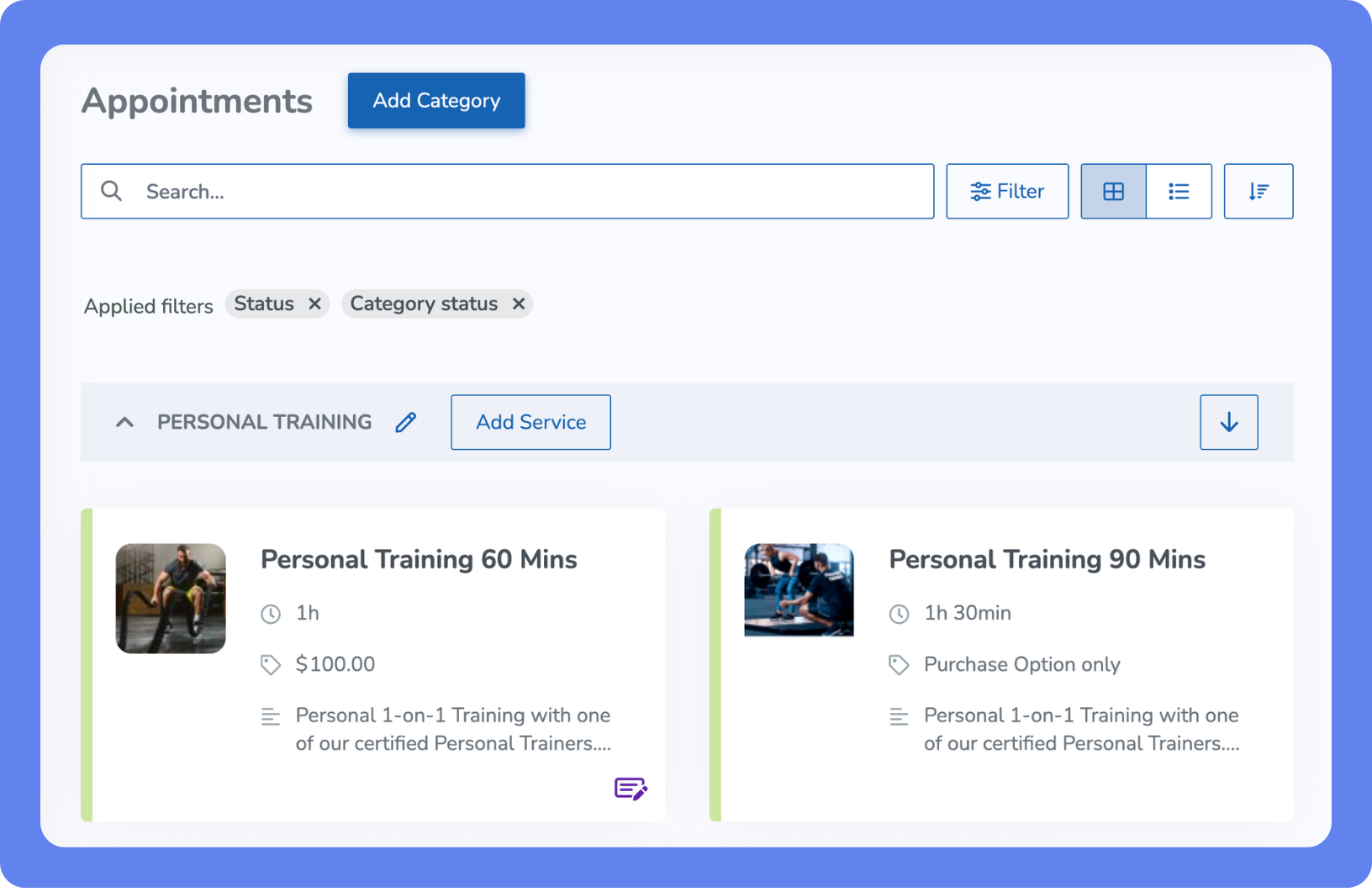
Set up appointment-based services to allow clients to book one-on-one sessions. You can organize services by category, define durations and pricing, and assign staff availability.
To add a new appointment:
Open the Main Menu, then click View All > Setup > Services > Appointments.
Click Add Category.
Name your new category.
Click Save.
Enter your client-facing appointment details and configure the additional settings.
Click Save.
Add Class
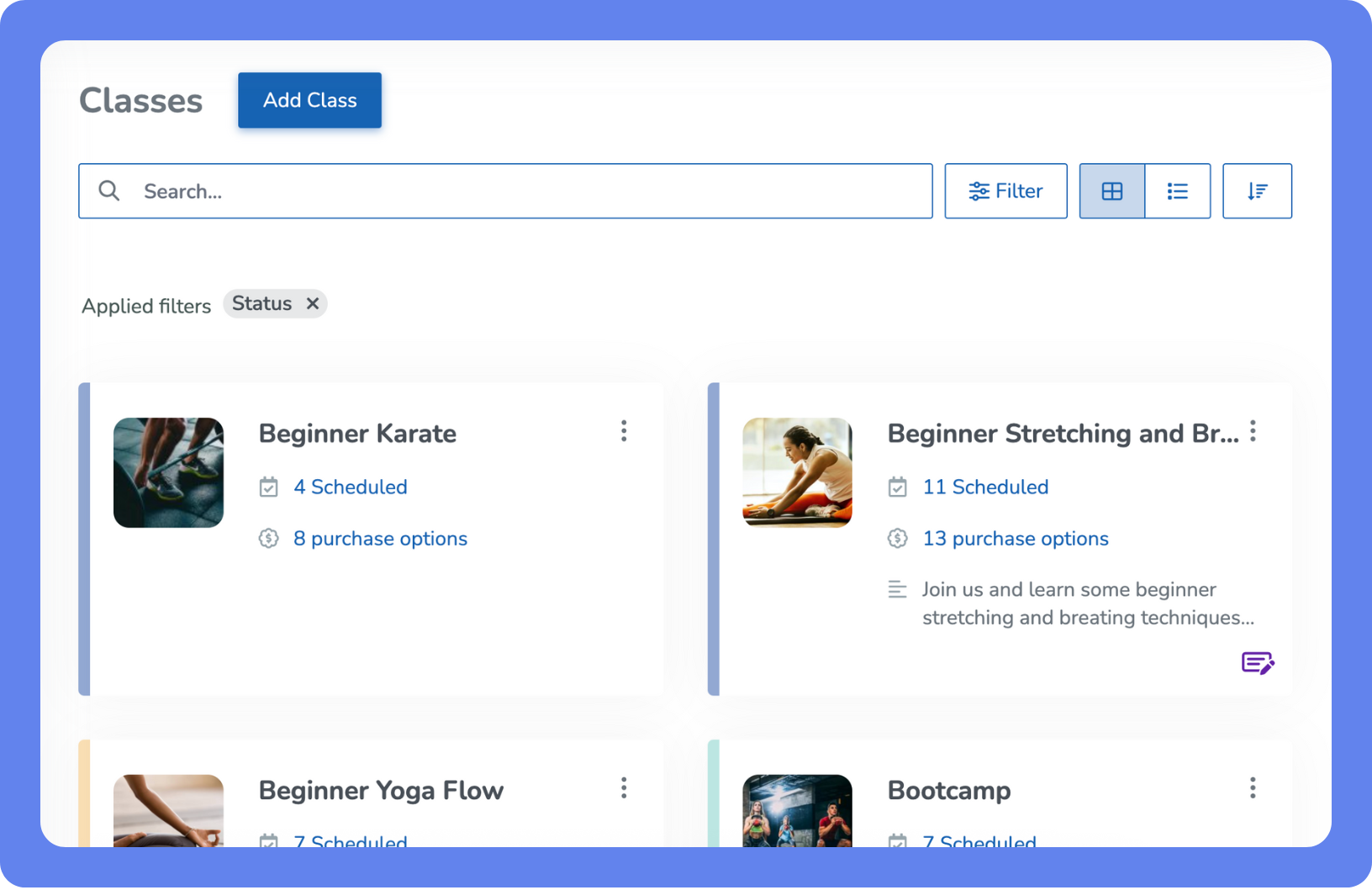
Use classes to offer group-based services like fitness sessions, martial arts training, or wellness workshops. You can define class details, assign instructors, and schedule recurring or one-time sessions.
To create a new class:
Open the Main Menu, then click View All > Setup > Classes.
On the Classes page, click Add Class.
Enter your client-facing class details and configure the additional settings.
Click Save to save the class, or Save and Schedule to save the class and schedule sessions for it immediately.
Create Events
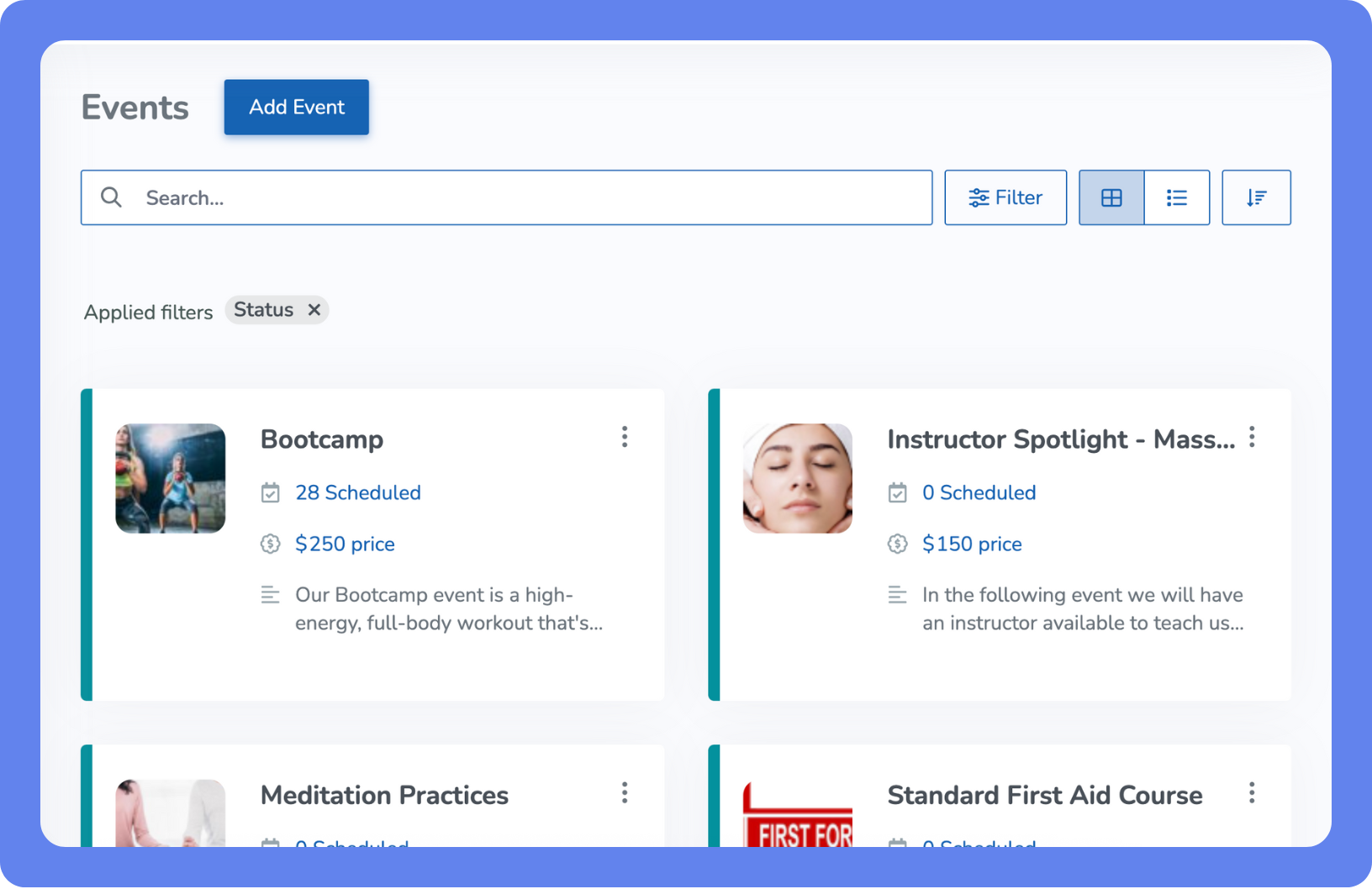
Events are perfect for one-time or multi-day offerings like workshops, seminars, retreats, or special training sessions. You can customize the event details, pricing, and schedule to fit your needs.
To create a new event:
Open the Main Menu, then click View All > Setup > Services > Events.
Click Add Event.
Enter your client-facing event details and configure the additional settings.
Click Save to save the event for later scheduling, or Save and Schedule to proceed with scheduling the event.
Asset Booking with Book-a-Spot®
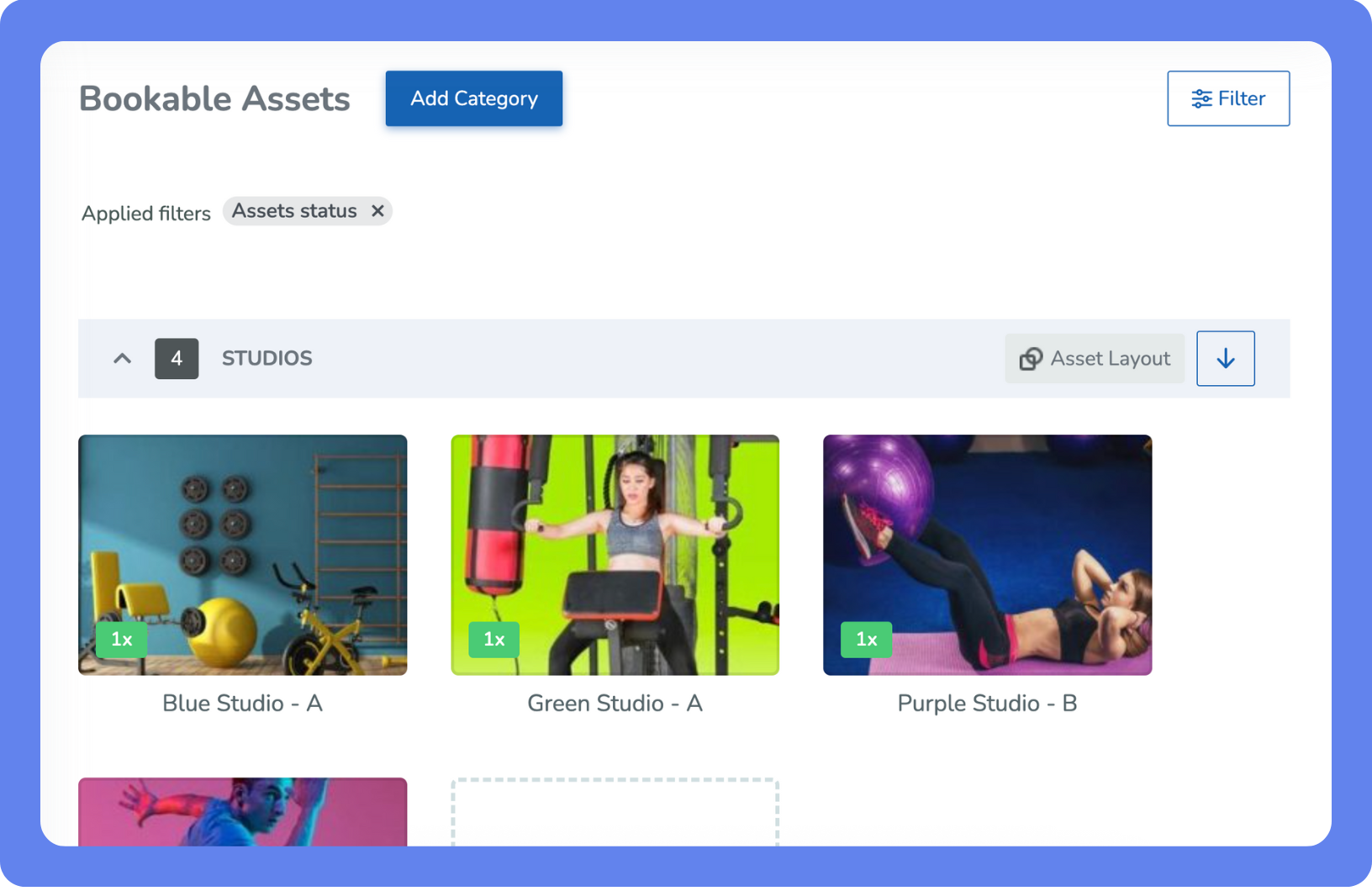
Book-a-Spot® enables you to manage assets like rooms and equipment, which can be booked independently or as part of a class, appointment, or event. Assets can also be sold in bulk as Prepaid Service Add-ons.
To create a Book-a-Spot asset:
Open the Main Menu, then click View All > Setup > Services > Book-a-Spot.
To create an asset:
If needed, click Add Category to create a new asset category.
Within the category, click Add Asset and enter the asset details.
Click Save.
You can also create an asset layout that visually represents the space for classes or appointments, allowing clients to choose specific assets or area, like front row in class, during booking.
Gym visits
Gym visits allow clients to use your facilities at their convenience. Once you’ve enabled Gym Visits as an available service type, you can create client purchase options like session passes or memberships, with set or unlimited visits like a 10-visit, monthly, or yearly memberships.