
Manual discounts can be applied to the items purchased in your store.
With manual discounts, you can:
Apply a dollar value or percentage discount to an individual item.
Apply a dollar value or percentage discount to all applicable items in the shopping cart.
Key tips
Staff members require the Edit price at the point of sale staff role permission enabled to apply manual discounts in the store.
You can also use discount codes to apply predefined discounts to purchases.
Manual discounts work differently depending on what you're discounting:
Purchase Options:
% discounts apply to all future payments;
however if the Purchase Option is later edited from the client profile, the discount only applies to the first payment.
$ discounts apply to the first payment only.
Packages:
Manual discounts apply to the first payment only.
To discount future auto-renewals, you need to edit the client type and assign it to the client.
How discounts appear in the cart and on receipts:
Cart:
When you apply a discount directly to an item, it shows in the total under Discount.
Sales receipt:
% discounts show per item.
$ discounts are applied to subsequent items until fully used.
Apply a manual discount to an individual item
To apply a manual discount to an individual item:
Start making a sale.
Click Action
 next to the item you want to discount and select Edit Details. In the new field, select a discount type (percentage, or dollar), and enter the amount to be discounted.
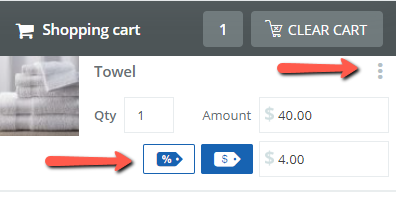
Click Proceed to Checkout.
Select each payment method the client wants to use.
Click Complete.
Apply a manual discount to the entire shopping cart
To apply a manual discount to the entire shopping cart:
Start making a sale.
At the bottom of the shopping cart, select a discount type:
Click Percent
 to enter a discount percentage.
Click Dollar
 to enter a discount value.
Click Approve

Click Proceed to Checkout.
Select each payment method the client wants to use
Click Complete.